
How to Build a Directory Outreach System
Prepare directory outreach drafts using listing previews and videos. Keep sends manual and track replies and stop rules.
 Airtable
 Tella
Tella Make
MakeWatch: How to Build a Directory Outreach System
A directory listing gives you a specific reason to contact a business: ask whether its details are accurate and useful. Show the listing, explain who the directory serves, and ask for one decision. This workflow prepares a preview and an email draft. You review the draft and send it manually.
Choose a small group of businesses
Start with 3–5 listings you already reviewed. Choose businesses that fit the directory and have a clear contact route. Check the business name, website, listing details, and contact address before preparing a message. If you need to discover more businesses, the B2B prospect-discovery workflow explains a separate collection process. Review those records before adding them to this outreach workflow.
Your first goal can be a listing correction, photo permission, or feedback on the directory. Keep paid upgrades for a separate conversation when they fit the business's needs. A useful reply may identify incorrect information even when it does not lead to a sale.
Explain the listing and ask for permission
My Running Directory example starts with the local connection:
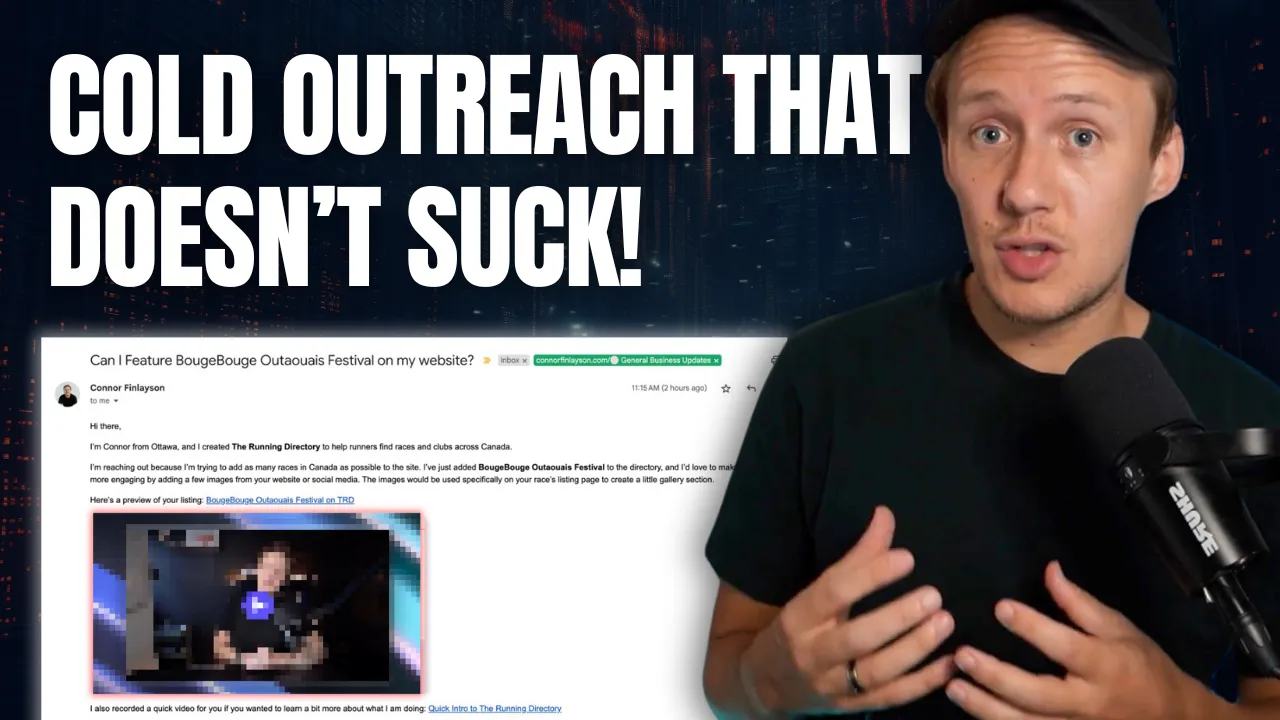
Hey, I’m Connor from Ottawa. I added your race to The Running Directory. I created the site to help people find events like yours.
Then show the page and ask about photos:
Here’s a preview of the page I created for your event. Would it be okay to use a few photos from your site or Instagram to complete the listing?
Include a descriptive link such as “View your race listing.” The recipient should know which page the link opens. Ask permission before copying photos into the directory. Keep the permission response with the listing record. Confirm which photos the business permits you to use and how it wants attribution handled.
Add a listing preview and optional video
A preview helps the business check what you created without searching through the directory. Here is the screenshot process I use:
- Take a screenshot of the listing page with Urlbox.
- Pass the screenshot to Placid for a branded thumbnail.
- Add the thumbnail to the email draft with a link to the listing or recording.
My thumbnail can include the business's branding and my face in the corner. Use only branding and images you can use in that context. Label the image as a video preview only when its link opens a recording.
Record a short walkthrough
Use Tella to explain the listing when a video adds useful context. The original example uses three parts:
- Introduction, 10–15 seconds: Say your name, directory name, and why you created the listing.
- Walkthrough, 30–60 seconds: Show the actual page, its details, and how visitors can find it.
- Request, 10–15 seconds: Ask whether you can add photos or correct missing information.
These durations are starting points for the example. Keep the video long enough to explain the page clearly. Open its share link without signing in before adding it to the draft. Use a still thumbnail or a GIF preview when the recording’s share options provide one.
You can reuse an introduction and closing, then record a new middle section for each business.
Update Video Link with the correct recording after each change.
If you use one general video, describe it as a directory overview rather than a personal walkthrough.
Set up the Airtable records
Add these fields to your Listings table:
| Field | Purpose |
|---|---|
Business Name | The business receiving the message |
Event Title | The event name, when applicable |
Listing URL | The reviewed page on your directory |
Email | The checked recipient address |
Screenshot URL | The listing screenshot |
Thumbnail Image URL | The completed Placid image |
Video Link | A general overview or specific recording |
Email Draft Status | Whether the draft needs preparation or review |
Send Date | When you manually sent the message |
A Create Draft button can request draft preparation for one record.
Also store a contact ID, draft ID, Response, last sent time, and do-not-contact flag.
Use the contact ID plus a campaign version as the draft key.
Check that key before creating another draft for the same contact.
Keep image permission separate from outreach status. A reply does not automatically grant permission to reuse every image.
Build the screenshot and draft workflows
Use two Make scenarios so an image failure does not create an incomplete email draft.
1. Generate the thumbnail
- Read the requested listing record and its
Listing URL. - Send the URL to Urlbox and store the screenshot in
Screenshot URL. - Map the screenshot and approved branding into the Placid template.
- Wait for the completed image and store its URL in
Thumbnail Image URL. - Mark the record ready for draft preparation after checking the result.
Urlbox's screenshot documentation covers page capture settings. Placid's Make guide explains dynamic template layers. Check that the screenshot shows the right listing and that text remains readable in the thumbnail.
2. Create the Gmail draft
- Read the contact name,
Email,Listing URL,Thumbnail Image URL, andVideo Link. - Check that required values exist and no draft already uses the same draft key.
- Map those values into your email template.
- Use Make's Create a draft email module for the intended Gmail account.
- Store the returned draft ID and update
Email Draft Statusto show that review is needed.
If draft creation returns an uncertain result, inspect Gmail before retrying. The draft may exist even when the workflow missed the response. Keep the final send manual. Check the recipient, links, image permission, and wording in Gmail before sending.
Review the message before sending
This template uses replaceable values. Include the personal-video wording only when you recorded the recipient's listing.
Subject: We added [Event Title] to [Your Directory Name]

Hey [First Name],

I’m [Your Name] from [Your City].
I created [Your Directory] to help people discover events like yours.

I added [Event Title] to the site: [Listing URL]
Here’s a short video showing your listing: [Video Link]
[Thumbnail Image]

Would it be okay to include a few photos from your website or Instagram?
Let me know which photos I can use and whether you need attribution.
I’m also happy to correct any listing details.

Best,
[Your Name]
[Directory URL]
Make Thumbnail Image open the recording when you describe it as a video preview.
Keep the listing link visible when images do not load.
After sending, record Send Date and the last sent time.
A saved draft is not a sent message.
Track replies and prepare limited follow-ups
Record the response and any requested correction or permission decision.
Check the actual conversation before preparing another message. An empty Response field may mean tracking failed.
Stop follow-ups after a reply, decline, invalid address, or request to stop.
The original workflow uses two example views:
| View | Starting filter |
|---|---|
| No Reply After 3 Days | Send Date is more than 3 days ago and Response is empty |
| No Reply After 7 Days | Send Date is more than 7 days ago and Response is empty |
Add exclusions for stopped contacts and messages already followed up. The seven-day view needs the first follow-up timestamp so it does not prepare the same message twice. These intervals are example settings. Choose a limited schedule that fits the conversation, then keep sends manual.
You can use Airtable or Make to mark records for review or remind yourself to check them. Automation can prepare the next draft after those checks.
Subject: Following up on your directory listing

Hey [First Name],

I sent a note last week about your [event/business] listing on [Your Directory].
Here’s the page: [Listing URL]

Would it be okay to add a few of your photos?
Please let me know which ones I can use and whether you need attribution.
I’m happy to update incorrect details too.

Best,
[Your Name]
Review the first batch before expanding
Test the complete process with your own address before contacting the first 3–5 businesses.
Check a missing video, an unavailable thumbnail, and a repeated Create Draft request.
Confirm that each case leaves a reviewable record and does not send a message automatically.
After the small batch, count replies, corrections, photo permissions, and completed conversations. Compare those outcomes with the time spent preparing and reviewing messages. Use marketplace growth metrics to assess whether the conversations support your directory's goals. Adjust the message or workflow from that evidence before adding more contacts.
Keep learning
More guides, free videos and course access for existing members, all in one place.
Go to LearnRather have it built for you?
We'll match you with vetted agentic talent who build it with AI, inside the tools you already use.
Schedule a callRelated posts
How to Monetize a Directory Website with Paid Online Communities
A directory can introduce vendors to a paid community. The community needs its own useful offer beyond exposure on your website.

Build Directory Category and Location Pages for Long-Tail Searches
Design directory category and location pages with useful listings, unique URLs, checked sync behavior, and realistic SEO expectations.
How I’d Build a Directory Website as a Complete Beginner
Follow a beginner directory roadmap from a Notion prototype to reviewed listings, CMS pages, automation, and revenue tests.