
How to Automate B2B Lead Generation: Scrape Google My Business with Apify and Make.com
Build a reviewed B2B research list with Apify, Make, and Airtable, using source evidence, duplicate checks, and controlled enrichment.

 Apify
ApifyA prospect list helps you research businesses that might fit your marketplace. It does not establish permission to contact them. The original workflow combines Google business listings, Apify, Make, Airtable, and AnyMailFinder. Start with a small review queue before adding enrichment or outreach.
Find a specific kind of business
The original article calls this source Google My Business.
For discovery, the useful task is finding business listings through Google Maps.
Use a focused query, such as coworking spaces Toronto, rather than collecting every local business.
Check the source and collection method permit your intended use.
Do not treat access to public data as unrestricted reuse rights.
Record the business name, website, address, source URL, and retrieval date. Review whether the business actually fits your directory's niche. Recent reviews can provide context, but they do not prove purchasing intent.
Run Apify as a small research batch
Choose the specific Actor you intend to use and read its input schema. An Actor is Apify's runnable tool. Different Actors use different input fields. Limit your first run to five results and set a cost limit where supported. Do not copy invented universal JSON into an Actor with a different schema. Apify's Make integration guide explains running Actors and retrieving results.
Wait for the run to finish successfully before importing its dataset. Store the run ID so you can inspect a failure without starting the same job again.
Map results into Airtable through Make
Use a table with these fields:
| Field | Purpose |
|---|---|
Business Name | Human-readable listing name |
Website | Business website |
Source URL | Original listing evidence |
Source ID | Stable provider identifier when available |
Retrieved At | Date of research |
Review Status | New, Approved, Rejected, or Needs Review |
Email Status | Not Searched, Verified, Unverified, or Missing |
Search for the stable source ID before creating a record. When no stable ID exists, review a candidate match using website and location. Do not merge two branches solely because their domains match. Update a confirmed match instead of creating it again.
Enrich only approved records
AnyMailFinder was the email-discovery tool in the original workflow. Run enrichment only after a person approves the business match and confirms the intended use. Keep the returned status and source information with the result. An email marked verified can still bounce or belong to the wrong person. Verification does not establish consent, relevance, or permission for outreach.
Keep outreach in a separate process with its own approval and stop rules. The directory outreach workflow shows how to prepare listing previews and email drafts for review.
Check the first five records
Use a test table without an email-sending action. Inspect names, websites, locations, source URLs, and duplicate matches manually. Replay the same dataset and confirm the record count stays unchanged. Stop on ambiguous matches, missing source evidence, or unexpected costs. For directory data quality, read the listing-page workflow before publishing collected material.
Keep learning
More guides, free videos and course access for existing members, all in one place.
Go to LearnRather have it built for you?
We'll match you with vetted agentic talent who build it with AI, inside the tools you already use.
Schedule a callRelated posts

Build Custom AI Agents for Other Businesses
Scope a custom business agent around one workflow, approved sources, read-only testing, and human review.
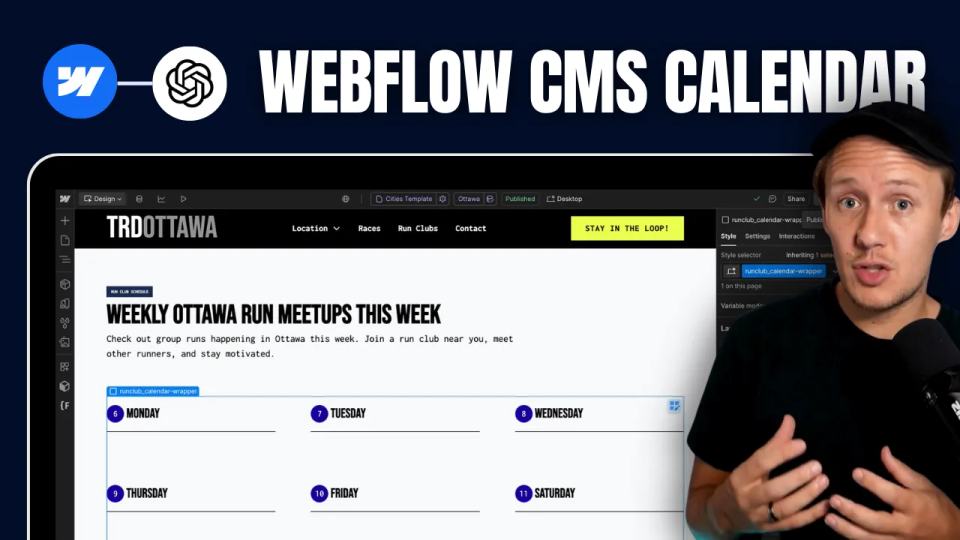
How to Build Custom Webflow CMS Features with ChatGPT & AI
I built a weekly calendar for The Running Directory Canada using Webflow CMS content and ChatGPT-assisted JavaScript. The calendar grouped run-club events by weekday and moved today's day to the front.
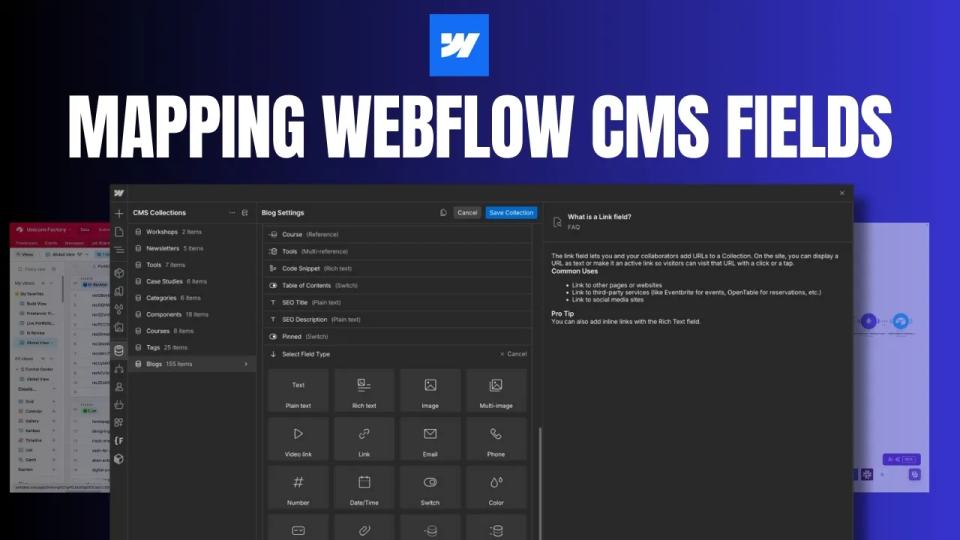
How to Map Common Airtable Fields to Webflow CMS
Map Airtable values to Webflow CMS types using option IDs, image objects, deterministic rich text, and staged JSON examples.