
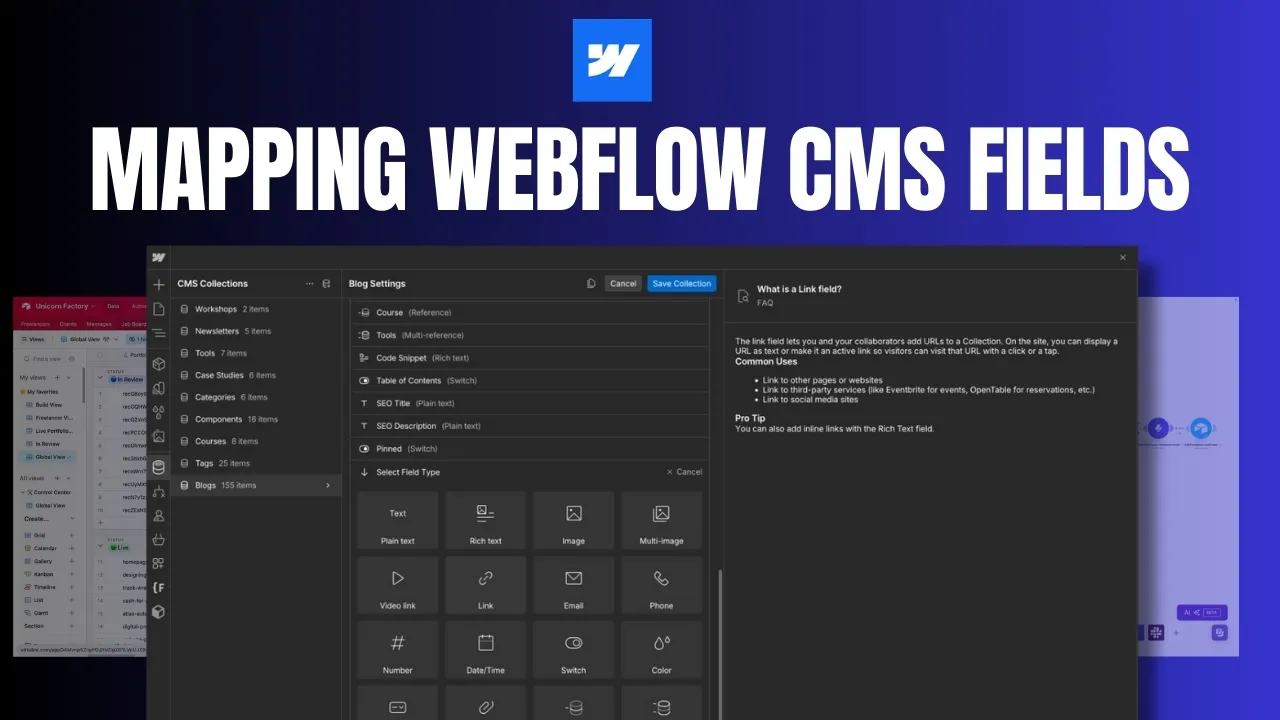
How to Map Common Airtable Fields to Webflow CMS
Map Airtable values to Webflow CMS types using option IDs, image objects, deterministic rich text, and staged JSON examples.
 Airtable
 Webflow
 Make
MakeField-by-Field Breakdown: Mapping Airtable to Webflow
1. Single Line Text → Plain Text
This is a direct match between Airtable and Webflow. For example, if you pass a text value like "Sample Text", it will map perfectly into Webflow's Plain Text field.
2. Long Text → Rich Text
If you’re dealing with rich text formatting, Airtable stores it in Markdown format. To properly send it to Webflow, which expects HTML, you’ll need to convert it. Use a deterministic Markdown-to-HTML converter. Apply the same conversion rules to each field, then sanitize the HTML. For example, a long text like "**Bold Text**" in Airtable would need to be converted to HTML like <strong>Bold Text</strong> before passing to Webflow.
3. Attachment → Image
For an image field, provide a supported public image URL or image reference. Retrieve fresh Airtable attachment URLs immediately before ingestion. For example, an API image value can contain {"url":"https://www.example.com/image.jpg"}. Use a real permitted public image URL.
Note: Verify the current image/file limits for your field and upload path. Optimize images and check the actual response.
4. Attachment (Multiple Files) → Multi-Image
If you have multiple image files in Airtable, use the current API’s array of image objects with url and optional alt values, and Webflow will upload each image into the Multi-Image field. For example, sending [{"url":"https://www.example.com/image1.jpg"},{"url":"https://www.example.com/image2.jpg"}] will result in both images being uploaded to Webflow.
5. URL → Link / Video Link
URLs like "https://www.example.com" or "https://www.youtube.com/watch?v=example" map directly to Webflow's Link or Video Link fields. These fields handle standard web links or video URLs without additional formatting.
6. Email → Email
Emails can be sent as plain text like "example@example.com" and map directly to Webflow’s Email field. This is a simple one-to-one mapping between the two systems.
7. Phone Number → Phone
Phone numbers pass directly from Airtable to Webflow. For example, sending a phone number like "+1234567890" will map into Webflow's Phone field.
8. Number → Number
Numbers map easily between Airtable and Webflow. For example, sending 12345 will map directly into Webflow’s Number field. This works for both integers and decimal numbers.
9. Date → Date/Time
Dates need to be passed in ISO 8601 format when syncing to Webflow. For example, a date value like "2024-09-17T10:22:24.000Z" will map correctly into Webflow’s Date/Time field.
10. Checkbox → Switch
When mapping a checkbox field, Airtable’s true/false values pass as booleans to Webflow’s Switch field. For instance, passing true will turn the switch on, and passing false will turn the switch off.
11. Single Select → Option
When syncing option fields, you can’t pass a raw value directly from Airtable to Webflow. Instead, you need to perform an API call to Webflow to retrieve the option field definition and its allowed option IDs. For example, if your single select in Airtable says "Option 1", you need to match that label to the option’s ID and send the ID string.
12. Linked Record → Reference
For reference fields, you’ll need to pass the Webflow ID of the linked item, not just a text value. Use a Lookup Field in Airtable to retrieve the Webflow ID and pass it through. For example, if the Webflow ID is "5f8d0d55a9337c5f0e0e7e0d", it needs to be sent in this format to Webflow's Reference field.
13. Linked Record (Multiple) → Multi-Reference
Similar to single references, for Multi-Reference fields, you need to pass an array of Webflow IDs. For instance, if you have multiple linked records, you can send ["5f8d0d55a9337c5f0e0e7e0d", "5f8d0d55a9337c5f0e0e7e1f"] to Webflow’s Multi-Reference field.
Important Things to Know Before Syncing Airtable and Webflow
When syncing Airtable and Webflow, there are a few crucial things to keep in mind to ensure a smooth and efficient integration. Avoid common mistakes like trying to map unsupported field types or skipping important backup steps. Below are some essential tips that can help you avoid roadblocks and make the process more seamless:
1. Avoid Multi-Select Fields in Airtable
Airtable’s Multi-Select fields don’t work with Webflow. There’s no equivalent field in Webflow, so mapping it won’t work. Here’s what you can do instead:
- Use fields like Single Select, Text, or Linked Records.
- If you need multi-select functionality, use Multi-Reference fields in Webflow and map the dropdown values to another collection.
- Heads up: Webflow limits the number of reference fields you can use in one collection.
2. Storing Webflow IDs and Slugs in Airtable for Backup
Always store both the Webflow ID and Slug in Airtable. Why?
- Backup: If you need to update or retrieve data from Webflow.
- Sync management: You can directly reference and update records by ID, instead of searching by non-unique fields.
Create dedicated Airtable fields for Webflow IDs and Slugs. The CMS update guide explains the next update workflow.
3. Single and Multi-Reference Fields: Use Lookup Fields
Webflow’s Reference and Multi-Reference fields work with Airtable’s Linked Record fields. Here’s the key:
- Use lookup fields in Airtable to retrieve the Webflow ID.
- This makes sure you pass the correct ID, not just the record name or a non-unique value.
4. Option Fields: Map Labels to Option IDs
Read the Collection schema, find the option’s label and ID, then send the ID string. Stop when no approved option matches.
5. Mapping Plain and Rich Text: Convert Markdown to HTML
Airtable stores rich text as Markdown, but Webflow expects HTML. Here’s what to do:
- Use a Markdown step in Make.com to change Markdown into HTML.
- Apply the same converter and sanitization rules consistently across rich text fields.
6. Retrieve Attachments Before They Expire
Airtable attachment download URLs expire. Retrieve a fresh URL immediately before ingestion and confirm Webflow accepted the upload. Do not store an Airtable download URL as a permanent public image destination. Read back Webflow’s stored image value and open it without Airtable access.
7. Store Airtable IDs in Webflow
Just as you store Webflow IDs in Airtable, store Airtable record IDs in Webflow. Why?
- If you ever need to retrieve or update Airtable records from Webflow, you’ve got a backup reference.
It’s a good idea to create a custom field in Webflow for Airtable IDs.
Additional Tips for Airtable and Webflow Integration
- Field Limits: Webflow’s current developer guide describes schemas with up to 60 fields. Confirm the actual Site plan’s relationship and rendering limits. Keep this in mind when designing your Airtable base.
- API Limits: When automating with Make.com or another tool, be mindful of Webflow’s API rate limits. You may need to batch updates or pause between requests.
- Rich Media: Webflow handles videos, PDFs, and other rich media well, but make sure all files are optimized before sending to prevent performance issues.
Check a full body for the difficult types
The following body uses example field slugs and IDs. Match them to your copied test Collection before sending it. It follows the current Webflow field reference.
{
  "isArchived": false,
  "isDraft": true,
  "fieldData": {
    "name": "Example listing",
    "slug": "example-listing",
    "description": "<p><strong>Directory design</strong> and development.</p>",
    "available": false,
    "rate": 100,
    "published-date": "2024-09-17T10:22:24.000Z",
    "service-type": "option-id-from-your-collection",
    "city": "5f8d0d55a9337c5f0e0e7e0d",
    "services": ["5f8d0d55a9337c5f0e0e7e1f"],
    "cover": {"url": "https://example.com/permitted-cover.jpg", "alt": "Example cover"},
    "gallery": [{"url": "https://example.com/permitted-gallery.jpg", "alt": "Example gallery"}]
  }
}
The image URLs illustrate the shape and are not downloadable test assets. Use your own permitted public images before sending the request. Send to the staged-item endpoint with a protected token, then read the item back by its returned ID. Compare each stored field with the input and inspect the rendered staging page.
Use deterministic Markdown conversion and sanitization for rich text. Do not ask a language model to preserve HTML structure exactly. For options, read Collection details and match the source label to the option's ID. Fail when the mapping is missing instead of substituting the first option.
Distinguish an omitted field from an intentional clear.
Use false for a switch and [] for an intentionally empty multi-reference field.
Check each field's accepted null or empty representation in a copied item before clearing real content.
Avoid converting absent source values into destructive empty updates.
Test text with quotes, an unknown option, an unresolved reference, an expired image URL, and an empty multi-reference. If Zapier rejects a mapped value, check the common Webflow Zap failures. The JSON examples were parsed locally. They were not submitted to a Webflow Collection. Use the Make fieldData workflow to build a reusable request from these shapes.
Define the CMS workflow structure before expanding the request to more records.
Keep learning
More guides, free videos and course access for existing members, all in one place.
Go to LearnRather have it built for you?
We'll match you with vetted agentic talent who build it with AI, inside the tools you already use.
Schedule a callRelated posts

Build Custom AI Agents for Other Businesses
Scope a custom business agent around one workflow, approved sources, read-only testing, and human review.
How to Build Custom Webflow CMS Features with ChatGPT & AI
I built a weekly calendar for The Running Directory Canada using Webflow CMS content and ChatGPT-assisted JavaScript. The calendar grouped run-club events by weekday and moved today's day to the front.
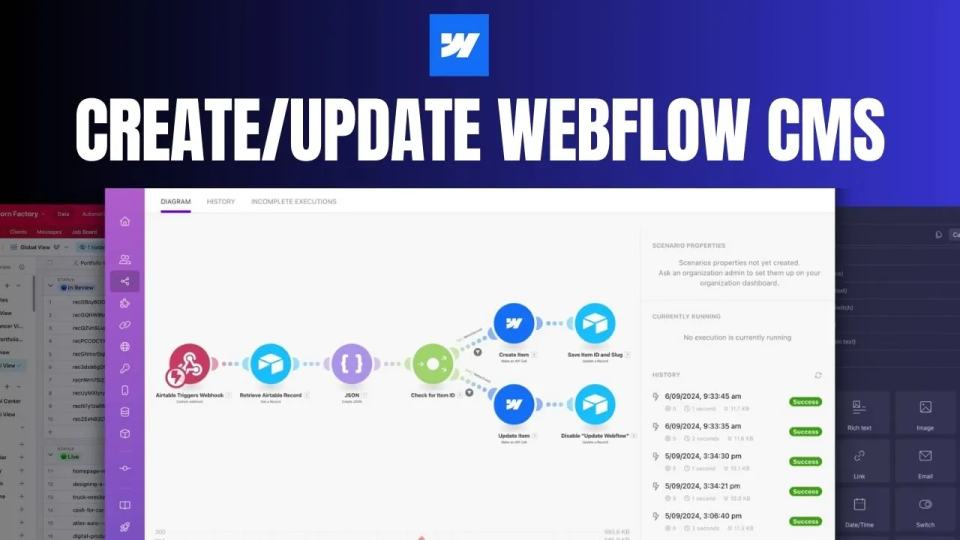
How to Automate Webflow CMS Updates with Airtable and Make.com: A Complete Guide
Create and update Webflow CMS items from Airtable through Make, with stored IDs, staged JSON, duplicate handling, and recovery checks.