
How to Build Custom Webflow CMS Features with ChatGPT & AI
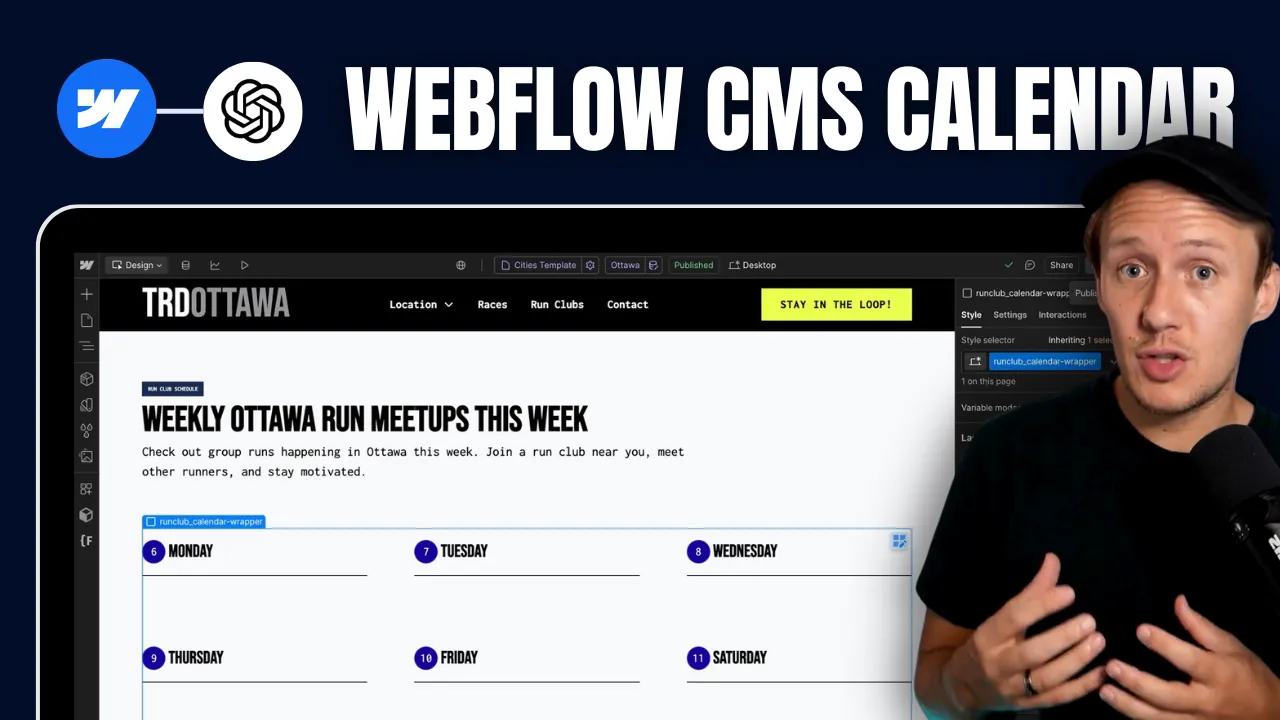
I built a weekly calendar for The Running Directory Canada using Webflow CMS content and ChatGPT-assisted JavaScript. The calendar grouped run-club events by weekday.
 Webflow
 OpenAI
I built a weekly calendar for The Running Directory Canada using Webflow CMS content and ChatGPT-assisted JavaScript. The calendar grouped run-club events by weekday and moved today's day to the front.
The original design
I started with seven static day blocks and a CMS list containing event weekdays. The script moved each rendered event into the matching day block. Later changes added date labels and a three-day desktop slider. On mobile, I used two stacked days with an option to expand the week. A View More button limited crowded days to three visible events initially.
The original Ottawa page provides project context. Its current implementation can differ from the historical Webflow version.
Give ChatGPT a precise brief
Share your actual HTML structure and attribute names before asking for a script. This prompt describes the minimal grouping task:
Create browser JavaScript for one weekly run-club calendar.
The wrapper has data-calendar. Seven day blocks use data-day="0" through "6".
Zero means Sunday. Each day contains data-events and data-date elements.
Rendered CMS cards use data-event-day="0" through "6".
Move cards into matching day blocks, preserving their links and content.
Rotate days so today's weekday in America/Toronto appears first.
Label dates using that timezone. Skip invalid cards without deleting them.
Do not fetch APIs, insert HTML strings, or hide content as an access control.
Explain the test cases and limitations.
Bind the CMS weekday number to data-event-day on each card.
Each day block needs a child with data-events and another with data-date.
Use a numeric weekday field rather than mismatched spelling.
If Airtable supplies that value, map its field type first.
A minimal replacement script
This example handles grouping, rotation, and dates. It does not recreate the original slider or expansion controls. Place it after the rendered calendar, before the closing body tag.
(() => {
  const root = document.querySelector('[data-calendar]');
  if (!root) return;
  const zone = 'America/Toronto';
  const parts = new Intl.DateTimeFormat('en-CA', {
    timeZone: zone, year: 'numeric', month: '2-digit', day: '2-digit'
  }).formatToParts(new Date());
  const value = type => Number(parts.find(p => p.type === type).value);
  const anchor = new Date(Date.UTC(value('year'), value('month') - 1, value('day'), 12));
  const today = anchor.getUTCDay();
  const days = new Map([...root.querySelectorAll('[data-day]')]
    .map(day => [Number(day.dataset.day), day]));
  if (days.size !== 7 || [...days.keys()].some(n => !Number.isInteger(n) || n < 0 || n > 6)) return;
  for (const card of root.querySelectorAll('[data-event-day]')) {
    const raw = card.dataset.eventDay.trim();
    if (!/^[0-6]$/.test(raw)) continue;
    const target = days.get(Number(raw)).querySelector('[data-events]');
    if (target) target.append(card);
  }
  for (let offset = 0; offset < 7; offset++) {
    const day = days.get((today + offset) % 7);
    const date = new Date(anchor);
    date.setUTCDate(date.getUTCDate() + offset);
    const label = day.querySelector('[data-date]');
    if (label) label.textContent = new Intl.DateTimeFormat('en-CA', {
      timeZone: 'UTC', weekday: 'long', month: 'short', day: 'numeric'
    }).format(date);
    root.append(day);
  }
})();
The script first reads Toronto's calendar date, then uses UTC noon for date arithmetic. This avoids adding 24 hours across local daylight-saving transitions. Change the city timezone deliberately when reusing the example. Keep day blocks as direct children of the calendar wrapper.
Test before adding controls
Test Sunday, Monday, month-end, and daylight-saving dates. Check missing weekdays, empty days, multiple events, and invalid card values. Confirm event links still work after cards move. Review desktop and 390px layouts before adding the slider or View More controls.
Other useful scripting tasks include sorting, date formatting, filtering, and conditional display. Browser visibility does not protect private data. Keep permissions on the server. For a smaller first script, start with an Airtable scripting example.
Keep learning
More guides, free videos and course access for existing members, all in one place.
Go to LearnRather have it built for you?
We'll match you with vetted agentic talent who build it with AI, inside the tools you already use.
Schedule a callRelated posts

Build Custom AI Agents for Other Businesses
Scope a custom business agent around one workflow, approved sources, read-only testing, and human review.
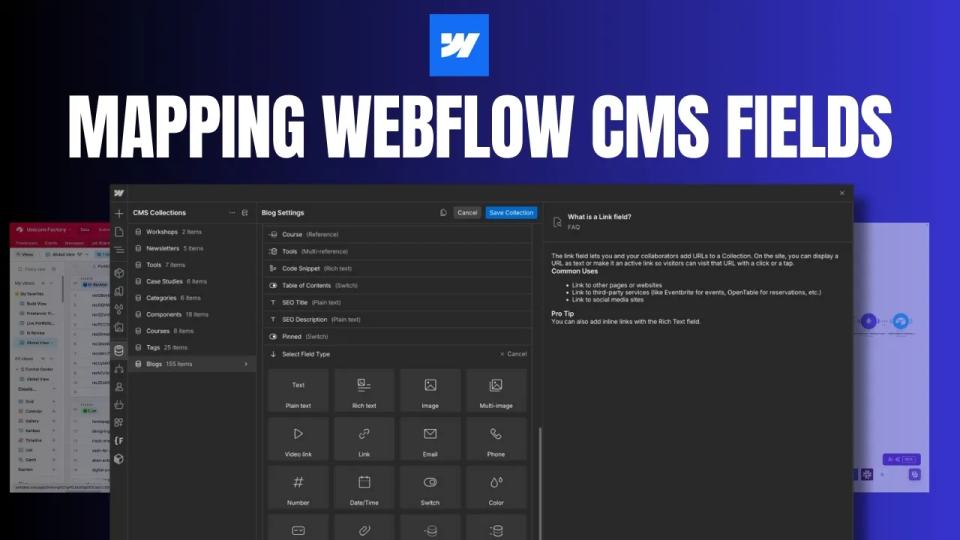
How to Map Common Airtable Fields to Webflow CMS
Map Airtable values to Webflow CMS types using option IDs, image objects, deterministic rich text, and staged JSON examples.
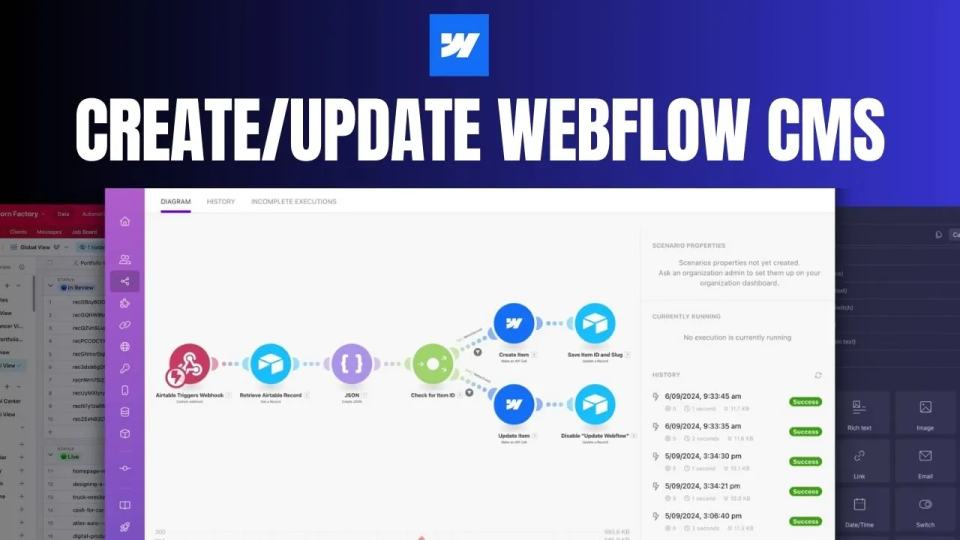
How to Automate Webflow CMS Updates with Airtable and Make.com: A Complete Guide
Create and update Webflow CMS items from Airtable through Make, with stored IDs, staged JSON, duplicate handling, and recovery checks.