
How to Automatically Create Facebook Ad Creatives For Your Landing Pages
Generate landing-page ad image drafts with Figma, Placid, Airtable, and Make, then review layouts and destination details.
 Airtable
 Make
MakeWatch: How to Automatically Create Facebook Ad Creatives For Your Landing Pages
Generate draft ad assets from landing-page data, then review each placement before using them in a campaign.
Step 1: Design Your Ad Concepts in Figma
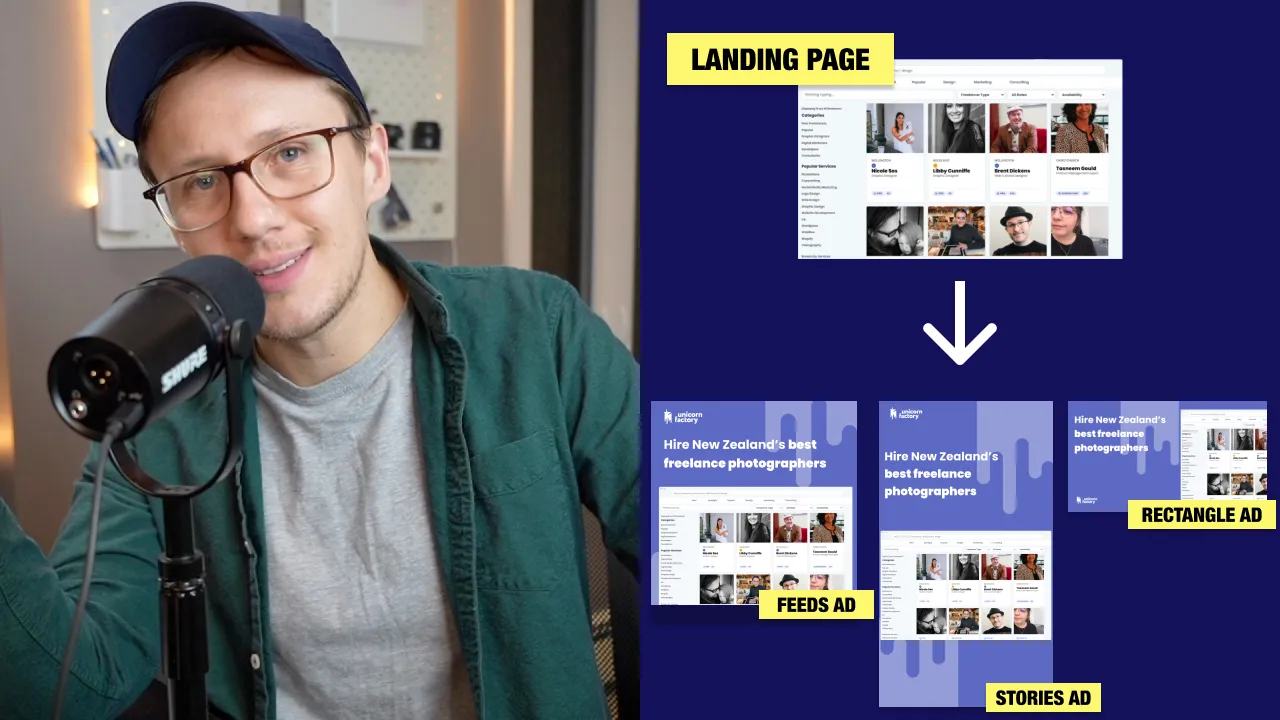
Start by conceptualizing your ads in Figma, a design tool that lets you create and iterate quickly. Create three variations to suit Facebook's most common ad placements:
- Feed Ad
- Stories Ad
- Rectangle Ad
Tips for Designing in Figma:
- Use placeholders for dynamic elements like headlines, images, and links.
- Test your designs with real data to ensure scalability.
- Opt for simple designs that accommodate automated updates, such as screenshots instead of cutout images.
For example, in previous campaigns for Unicorn Factory, I used freelancer profile cutouts, but switching to screenshots streamlined the workflow for automation.
Step 2: Automate Ad Creation with Placid
Placid is a design automation tool that allows you to create dynamic graphics at scale. Here’s how to set it up:
1. Create a Template
- Choose a base template or create your own in Placid.
- Set dimensions based on your Facebook ad placements (e.g., Feed, Stories, Rectangle).
2. Customize Your Template
- Add background colors, logos, and placeholders for dynamic content.
- Use Placid’s browser frame layer to include screenshots of your landing pages.
3. Define Dynamic Elements
Mark dynamic elements like:
- Headlines: These will vary for each landing page.
- Screenshots: Displayed content specific to each ad.
Step 3: Connect Placid to Your Database with Airtable and Make.com
To generate ads dynamically, you’ll need to connect Placid to a data source like Airtable, a database tool that combines the flexibility of spreadsheets with the power of a database. Using Make.com (formerly Integromat), you can link Airtable with Placid to automate the process.
1. Set Up Airtable
- Create a table to store your landing page details, including:
- Page titles (for headlines).
- Screenshots.
- URLs.
2. Integrate Airtable with Placid Using Make.com
- Use Make.com’s drag-and-drop interface to create a scenario.
- Set up a trigger for new entries in Airtable.
- Add an action to send data from Airtable to Placid.
3. Run Your Workflow
Trigger the workflow to generate ad variations automatically. Outputs will populate in Airtable fields, ready for review and download.
Step 4: Generate and Manage Your Ads
After configuring the workflow, you can generate multiple draft variations after testing one complete record. Here’s how to manage them effectively:
1. Trigger on Demand
Run your workflow manually or set it to trigger via a webhook whenever a new landing page is added to your database.
2. Organize Outputs
- Store generated images and URLs in dedicated Airtable fields, such as:
- Feeds Ad URL
- Feeds Ad Image
3. Use Across Platforms
Besides Facebook, these assets can be reused as:
- Open Graph images for social media shares.
- Visuals for other ad platforms like Instagram or LinkedIn.
Step 5: Scale and Optimize
Once your workflow is up and running, focus on scaling and optimization:
- Test Different Ad Variations: Use multiple templates in Placid to see what resonates best with your audience.
- Leverage Analytics: Monitor click-through rates and conversions to refine your ads.
- Expand Integrations: With tools like Make.com, you can automate additional assets, such as email banners or website graphics.
Use Figma for layout decisions and Placid for repeatable image generation. Keep asset approval separate from campaign publishing.
Test one landing-page record
Use a clearly labeled sample: title Find a freelance designer, a permitted page screenshot, and a staging landing-page URL.
Create separate template names for square, portrait feed, and full-height story layouts.
Example canvases are 1080 × 1080, 1080 × 1350, and 1080 × 1920 pixels.
These are example dimensions, not a claim about every current Meta placement requirement.
Check the Meta Ads Guide before choosing campaign formats and export dimensions.
Map the title into a text layer and the screenshot into an image layer. Placid’s Make guide explains dynamic layer mapping. Store each finished asset URL with its template name, source record ID, and approval state. Limit the first run to one record and three assets. Review generated output before increasing volume.
Test a long headline, a missing screenshot, and a narrow source page. Check cropping, readability, logos, and the actual destination URL. Do not imply an ad was tested because its image rendered successfully. Use a separate template for CMS Open Graph images.
Keep learning
More guides, free videos and course access for existing members, all in one place.
Go to LearnRather have it built for you?
We'll match you with vetted agentic talent who build it with AI, inside the tools you already use.
Schedule a callRelated posts

How To Automatically Generate Open Graph Images For Your Landing Pages
A custom Open Graph image can show a page's own title and product screenshot when someone shares its link. This final landing-page lesson uses Placid to create that image from Airtable data. It follows approved Webflow updates.

Draft Landing-Page SEO Fields with Airtable and OpenAI
This landing-page series starts by drafting title tags, descriptions, and headings in Airtable. AI can produce a first draft from approved page facts. You still decide what gets published.

Before Building a Marketplace: Define the First Demand Test
This historical marketplace lesson focuses on preparation before building the full product. Use the recording as a starting discussion, then define the demand test you can actually run.