
Draft Landing-Page SEO Fields with Airtable and OpenAI
This landing-page series starts by drafting title tags, descriptions, and headings in Airtable. AI can produce a first draft from approved page facts. You still.
 Make
Make OpenAI
This landing-page series starts by drafting title tags, descriptions, and headings in Airtable. AI can produce a first draft from approved page facts. You still decide what gets published.
Prepare your Pages table
Use Name, Approved Facts, Draft SEO Title, Draft Description, Draft H1, and Draft H2 text fields.
Add a record ID input to an Airtable Run a script automation.
Create secrets named openaiKey and an input named model for a currently available Responses-compatible model.
Keep approved facts specific. Do not ask the model to invent testimonials, prices, or locations.
Generate and save one draft
This replacement example uses OpenAI's Responses API. It makes one request, checks the result, and writes draft fields to the triggering record.
const {recordId, model} = input.config();
const table = base.getTable('Pages');
const row = await table.selectRecordAsync(recordId);
if (!row || !model) throw new Error('Missing record or model');
const facts = row.getCellValueAsString('Approved Facts').trim();
if (!facts) throw new Error('Approved facts required');
const response = await fetch('https://api.openai.com/v1/responses', {
  method: 'POST',
  headers: {
    Authorization: `Bearer ${input.secret.openaiKey}`,
    'Content-Type': 'application/json'
  },
  body: JSON.stringify({
    model, store: false, max_output_tokens: 600,
    instructions: 'Use only the supplied facts. Return JSON only with title, description, h1, h2 string keys. No markdown. No invented claims.',
    input: JSON.stringify({name: row.getCellValueAsString('Name'), facts})
  })
});
if (!response.ok) throw new Error(`OpenAI failed: ${response.status}`);
const result = await response.json();
if (result.status !== 'completed') throw new Error('Incomplete generation');
const text = (result.output || []).flatMap(item => item.content || [])
  .filter(part => part.type === 'output_text').map(part => part.text).join('');
const draft = JSON.parse(text);
for (const key of ['title', 'description', 'h1', 'h2']) {
  if (typeof draft[key] !== 'string' || !draft[key].trim()) throw new Error(`Invalid ${key}`);
}
await table.updateRecordAsync(recordId, {
  'Draft SEO Title': draft.title.trim(),
  'Draft Description': draft.description.trim(),
  'Draft H1': draft.h1.trim(),
  'Draft H2': draft.h2.trim()
});
output.set('recordId', recordId);
updateRecordAsync() saves Airtable fields. output.set() only exposes a value to later automation actions.
Airtable documents that distinction.
Malformed output stops this example instead of sending partial copy to Webflow.
Review before syncing
Compare every draft with its source facts and page content. Keep titles distinct across landing pages. Remove repeated location text and unsupported superlatives. Add an Approved checkbox that only a reviewer changes. Keep generation separate from the approval trigger so a draft cannot approve itself.
For location pages, build the listing-page structure first. Then send approved fields to Webflow. The next part explains the series' update workflow, including Last CMS Update.
Keep learning
More guides, free videos and course access for existing members, all in one place.
Go to LearnRather have it built for you?
We'll match you with vetted agentic talent who build it with AI, inside the tools you already use.
Schedule a callRelated posts
How To Automatically Generate Open Graph Images For Your Landing Pages
A custom Open Graph image can show a page's own title and product screenshot when someone shares its link. This final landing-page lesson uses Placid to create that image from Airtable data. It follows approved Webflow updates.
How to Automatically Create Facebook Ad Creatives For Your Landing Pages
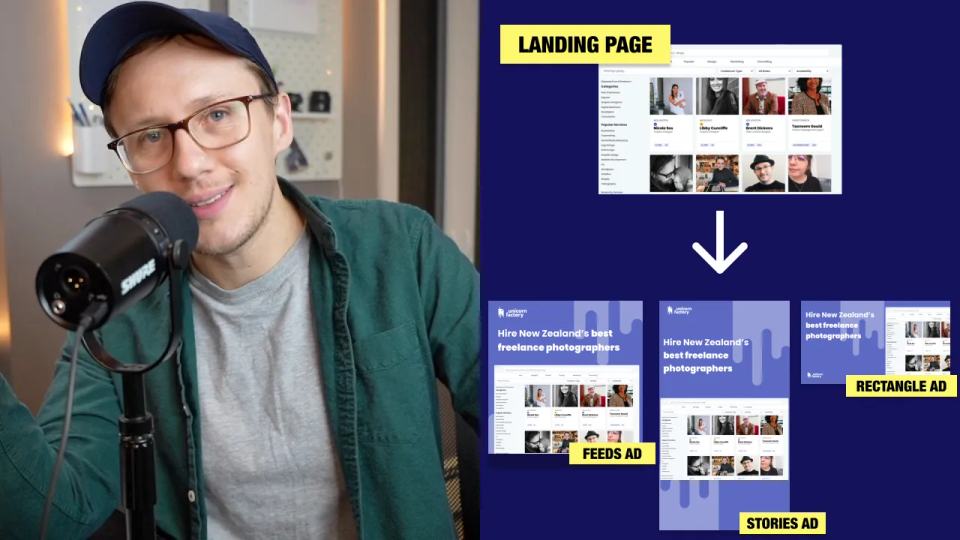
Generate landing-page ad image drafts with Figma, Placid, Airtable, and Make, then review layouts and destination details.

Before Building a Marketplace: Define the First Demand Test
This historical marketplace lesson focuses on preparation before building the full product. Use the recording as a starting discussion, then define the demand test you can actually run.