
How Whalesync Built a 1,000+ Listing AI Tools Directory in 1 Week (No-Code Stack Breakdown)
This interview describes how Whalesync built an AI tools directory using Webflow and Airtable. The one-week timeline and listing count describe the team's original account, not.
 Airtable
 Webflow
 Whalesync
This interview describes how Whalesync built an AI tools directory using Webflow and Airtable. The one-week timeline and listing count describe the team's original account, not a repeatable performance promise.
What is Whalesync?
Whalesync lets you sync data between tools like Airtable, Webflow, Notion, and Supabase — making it easy to manage content across platforms. The interview focuses on syncing corresponding records rather than building a separate automation for each change.
Why Whalesync Focused on Syncing (Not Automation)
Matt and his co-founder Curtis started Whalesync after hearing one recurring problem from no-code builders: “I’ve got 20 zaps set up, but the one with 30 steps that syncs Airtable to Webflow keeps breaking.” Instead of trying to build logic-heavy workflows, users just wanted to sync their backend to their frontend—without constant triggers or patchy workarounds. That’s the niche Whalesync jumped into.
Building the AI Tools Directory
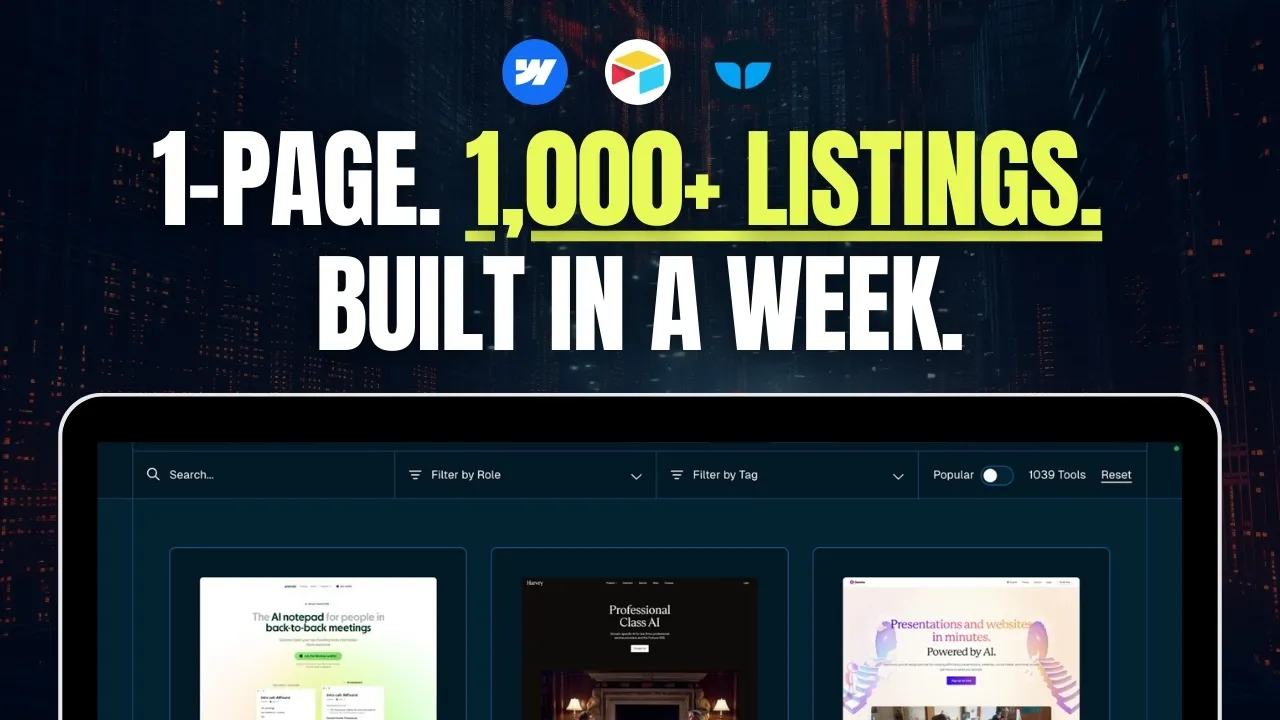
Whalesync wanted to scratch their own itch: AI tools were popping up everywhere, but keeping track was a mess. So they decided to build a searchable, filterable AI directory.
The Stack:
- Webflow for the front-end and CMS
- Airtable for the backend database
- Whalesync to sync Airtable → Webflow
They built it directly on whalesync.com/tools/ai-directory to keep it on the Whalesync domain, instead of creating a standalone domain.
Search + Filtering: How It Works
They used custom scripts to power search and filtering on the site. While they considered tools like Jetboost or Finsweet Attributes, they opted for a native JavaScript setup to control the implementation. Matt gives a shoutout to Corey Moen, the Webflow designer behind their setup.
How They Collected & Enriched 1,000+ Listings
Here’s their step-by-step data collection and enrichment workflow:
- Collect URLs – Gather a big list of tool names and homepages.
- Scrape Metadata – Use Google Sheets with IMPORTXML to pull the site title, meta description, and H1.
- Generate Descriptions – Use Airtable AI to write short, clear descriptions (under 100 characters). They referenced the title, H1, and description fields in the AI prompts.
- Add Images – Use the Airtable Web Clipper extension to grab thumbnails from each site.
- Tag Tools – Start by tagging 300 tools manually with ChatGPT, then use Airtable AI to suggest tags for the remaining listings.
- Use Airtable Views – Only listings with complete data (description, tags, role, image) were synced to Webflow via a special Airtable view.
Pro tip: You can also use filters instead of views in Whalesync for more flexible two-way syncing.
Why Airtable (Not Notion or Supabase)
While both Notion and Supabase were options, they went with Airtable for two reasons:
- Editing workflow – The team preferred Airtable for managing its structured listings.
- Interface – More flexible views and extensions (like Web Clipper).
That said, Matt notes more technical users are starting to use Supabase + Airtable, where Supabase is the backend and Airtable is the admin panel.
SEO Strategy: CMS-Driven Pages
Although the first version of the directory focused on one listing page, Matt shared plans to expand into:
- CMS pages for tags and categories (e.g. “AI tools for finance” or “CRM AI tools”)
- Programmatic SEO landing pages (similar to what Coinbase and Zapier do)
Whalesync’s own YouTube tutorial walks through how to create these types of landing pages automatically using their stack.
Common Whalesync Use Cases (Besides Directories)
Besides directories, Matt highlighted two fast-growing use cases:
- Programmatic SEO – Build thousands of SEO-optimized landing pages.
- Local SEO Pages – E.g. “Best yoga studios in Toronto” – powered by filtered CMS collections.
Bonus: You can also use DataFetcher + Whalesync to sync external APIs into Webflow via Airtable.
Reuse the workflow carefully
Google Sheets calls the function IMPORTXML, not XMLIMPORT.
For example, this formula attempts to read a public page title:
=IMPORTXML("https://example.com", "//title")
Google's IMPORTXML guide documents the function. Some sites block automated retrieval or render content unavailable to that function. Respect source access rules and confirm you can reuse descriptions and images before publishing them.
Keep the source URL, collection date, and review status beside each listing. AI-generated descriptions and categories need review; generating them does not verify a product's features. Search-friendly pages also need useful, accurate content. Creating many pages does not ensure search traffic.
Inspect the original directory before borrowing its structure. Then find useful directory listing data with clear reuse rights. Use that data to build directory listing pages.
Original interview
Keep learning
More guides, free videos and course access for existing members, all in one place.
Go to LearnRather have it built for you?
We'll match you with vetted agentic talent who build it with AI, inside the tools you already use.
Schedule a callRelated posts

How to Monetize a Directory Website with Paid Online Communities
A directory can introduce vendors to a paid community. The community needs its own useful offer beyond exposure on your website.

Build Directory Category and Location Pages for Long-Tail Searches
Design directory category and location pages with useful listings, unique URLs, checked sync behavior, and realistic SEO expectations.

How to Build a Directory Outreach System
Prepare directory outreach drafts using listing previews and videos. Keep sends manual and track replies and stop rules.