
Getting Started with Tella MCP in Claude Desktop
Connect Tella to Claude through current connector methods, test read access, inspect tool inputs, and review bounded edits.

Connection and tool details checked October 7, 2026. Start with a read-only lookup before requesting edits.
If you're creating videos with Tella, you've probably spent hours managing your content library: organizing videos into playlists, updating metadata, searching for specific clips, and extracting transcripts. What if you could do all of this through simple conversation?
Enter the Tella MCP (Model Context Protocol) - an integration that connects your Tella workspace directly to Claude Desktop. In this guide, I'll show you what MCPs are, how to install Tella MCP, and the powerful workflows you can unlock.
New to Tella? Get started with Tella here and unlock powerful AI-driven video automation.
Table of Contents
- What is MCP?
- What is Tella MCP?
- Installing Tella MCP
- Your First MCP Conversations
- Available Tools Reference
- Real-World Workflows
- Tips for Getting Started
- Key Takeaways
- Resources
- FAQ
What is MCP?
MCP (Model Context Protocol) is a standardized interface that allows AI assistants to connect directly to external tools and services. Think of it like giving Claude Desktop access to your apps and data, so it can help you get work done instead of just answering questions.
How MCP Works
MCP lets a compatible assistant use connected tools and return their results. Available actions depend on the connection and permissions.
With MCP, Claude can:
- Read data from your connected services
- Take actions on your behalf
- Automate repetitive workflows
- Process and analyze your actual content
Example:
- Without MCP: "Claude, how should I organize my videos?" → You get advice, then manually organize everything
- With MCP: "Claude, propose topic playlists for these five videos" → Review the assignments before changing playlists
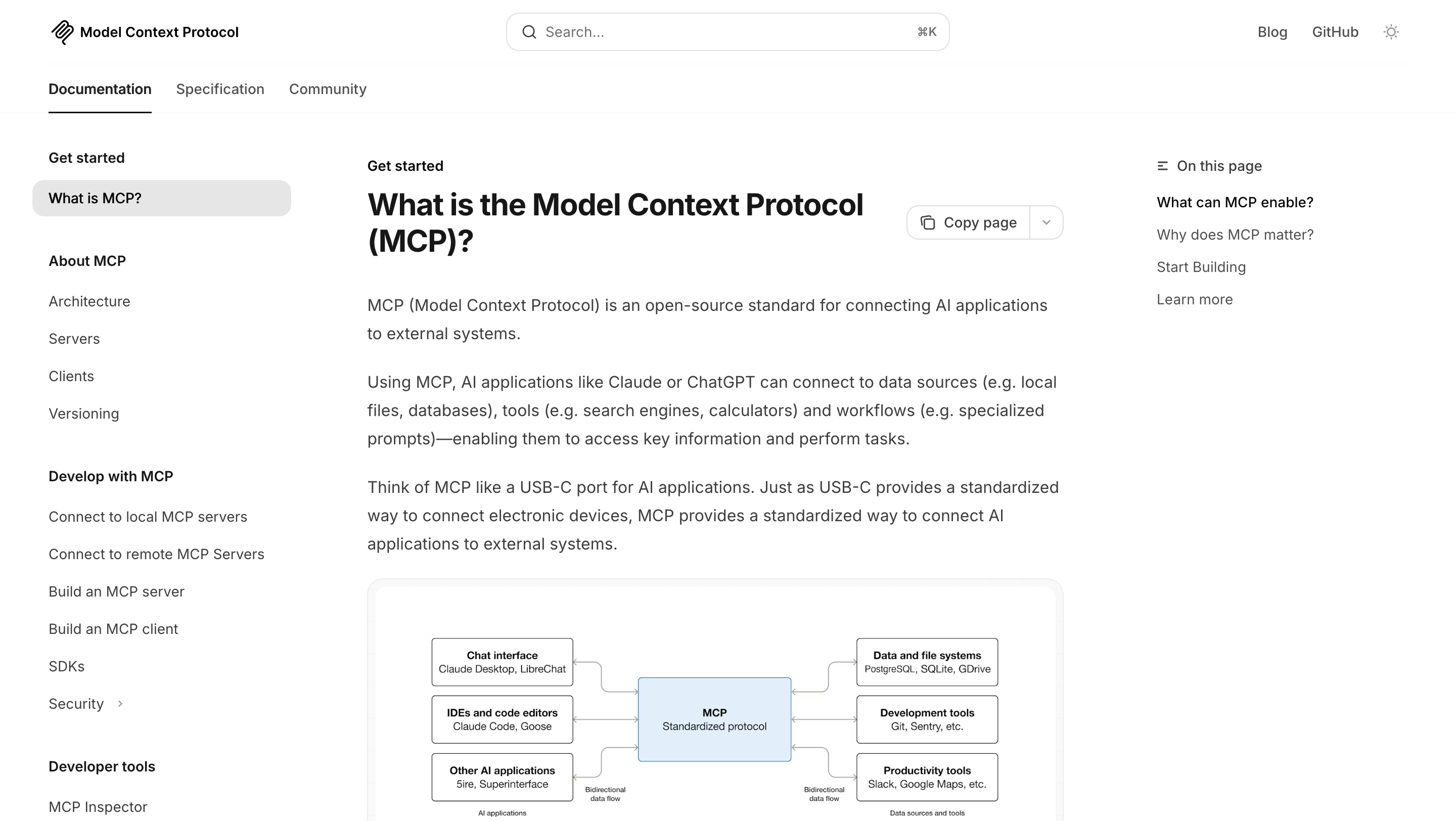
Note: MCP works with Claude Desktop, ChatGPT, and other AI tools that support the protocol. This guide focuses on Claude Desktop, but the same concepts apply to other platforms.
Learn more: Read the official Model Context Protocol documentation to understand how MCP works across different applications.
What is Tella MCP?
The Tella MCP is a specific MCP server that connects Claude to your Tella workspace. It gives Claude the ability to:
- Browse all your videos
- Read transcripts and metadata
- Create and manage playlists
- Update video settings
- Duplicate videos
- And much more...
All through natural language conversation.
Installing Tella MCP
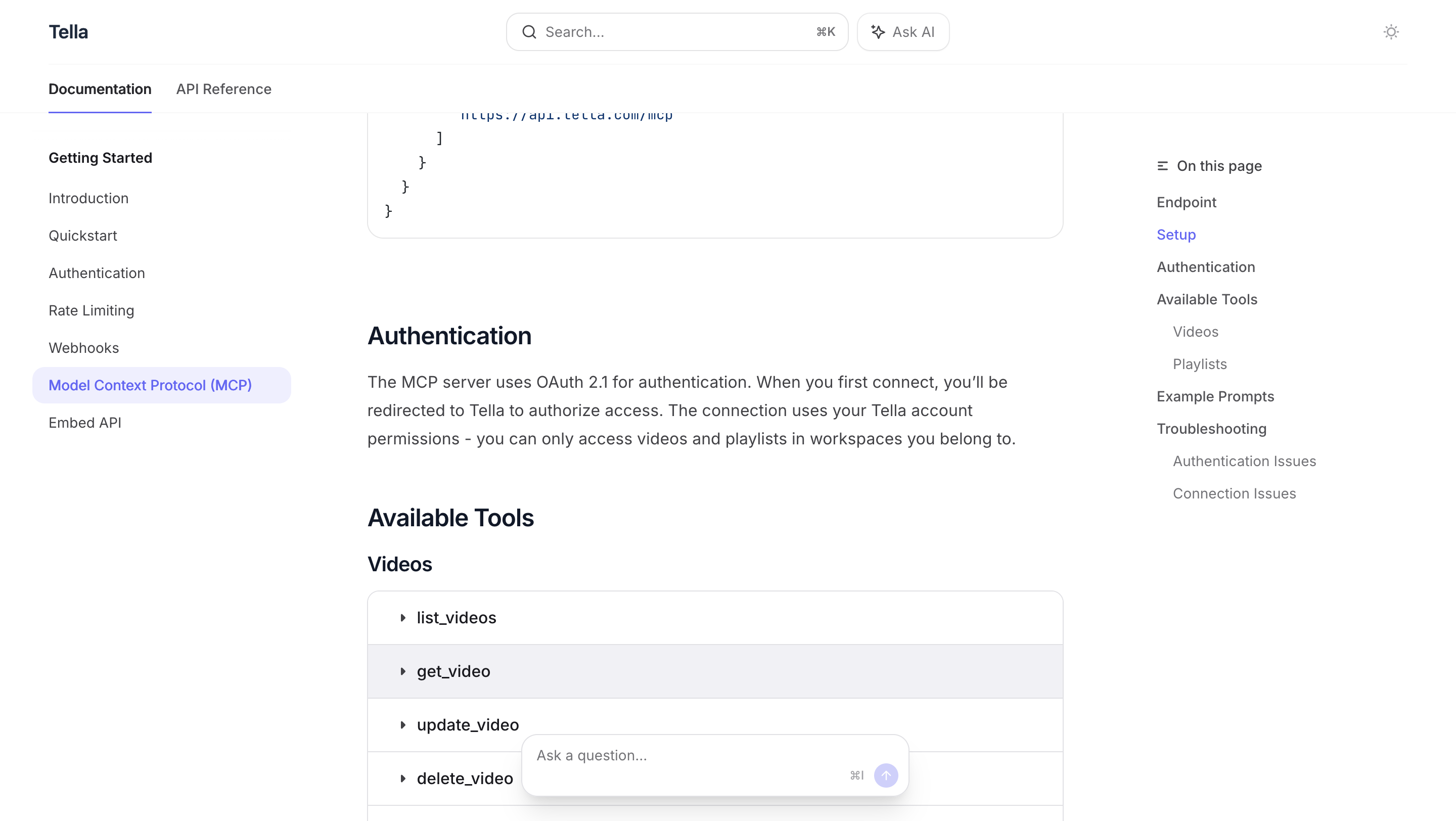
Tella documents Claude connectors and a Claude Desktop configuration. Choose the method available in your client.
Option 1: Claude Connector Directory or custom connector
Tella’s current setup guide supports Claude’s Connector Directory and a custom connector. Open Tella in the directory, connect, and authorize the intended workspace. If you choose a custom connector, use the endpoint below. Your client’s menus can differ.
Step 1: Open Account Settings
In Claude Desktop, click on your profile icon or settings, then navigate to Connectors.
Step 2: Add Custom Connector
Scroll to the bottom and click "Add a Custom Connector".
Step 3: Configure Tella
Fill in the details:
- Name:
Tella - Remote MCP Server URL:
https://api.tella.com/mcp
Click Add to save.
Adding Tella as a custom connector in Claude Desktop settings.
Step 4: Enable in New Chat
- Start a new chat
- Click the + button before typing
- Under "Connectors", you should see Tella
- Enable it by clicking the toggle
Step 5: Authenticate
The first time you use it, click Connect and you'll be redirected to authenticate with your Tella account via OAuth 2.1.
That's it! You're ready to start using Tella MCP.
Option 2: Config File Method (Advanced)
For developers who prefer editing configuration files directly.
Step 1: Locate Config File
Find your Claude Desktop configuration file:
macOS:
~/Library/Application Support/Claude/claude_desktop_config.json
Windows:
%APPDATA%/Claude/claude_desktop_config.json
Step 2: Add Tella Configuration
Open the file and add this configuration:
{
  "mcpServers": {
    "tella": {
      "command": "npx",
      "args": ["mcp-remote", "https://api.tella.com/mcp"]
    }
  }
}
If you already have other MCP servers configured, add the tella entry to your existing mcpServers object.
Step 3: Restart Claude Desktop
Close and reopen Claude Desktop for the changes to take effect.
Step 4: Enable and Authenticate
Follow steps 4-5 from the GUI method above.
Troubleshooting Authentication
If you encounter authentication issues:
-
Clear the MCP auth cache:
rm -rf ~/.mcp-auth -
Restart Claude Desktop
-
Try connecting again to initiate a fresh OAuth flow
Your First MCP Conversations
Now that you're connected, let's try it out! Here are five practical examples to get you started, from simple to advanced.
Example 1: List Your Recent Videos
Let's start with the basics - seeing what videos you have.
What to say:
"Can you list the last 5 videos in my Tella account?"
What happens:
- Claude connects to your Tella workspace
- Returns the requested recent library page
- Displays the fields returned by the connected tool
First-time users: You'll see a "Connect" button. Click it to authenticate with Tella, then Claude will show your videos.
Your recent videos displayed in Claude Desktop - no need to log into Tella!
Example 2: Search for Specific Videos
Now let's find videos by topic using natural language search.
What to say:
"Can you find me all videos that include webflow in the title?"
What happens:
- Claude searches the accessible library and returns a page of matches
- Filters for videos with "webflow" in the title
- Returns a filtered list with links
Pro tip: You can search by any keyword, not just title. Try "videos about automation" or "videos longer than 10 minutes".
Example 3: Get Video Details
Let's dive deeper into a specific video.
What to say:
"Can you share some of the details about the first video?"
What happens:
- Claude looks at the conversation context (the first video from your list)
- Retrieves comprehensive metadata:
- Duration, aspect ratio, views
- Privacy settings, caption status
- Publish date, description
- Direct link to watch
Use the returned video ID for later requests. A position such as “the first video” can become ambiguous after another search.
Example 4: Access Transcripts and Content
Now let's work with the actual content inside your videos.
What to say:
"Can you give me the transcript along with a short summary of what this video is about?"
What happens:
- Claude retrieves the full transcript (when transcript data is ready and available)
- Reads and analyzes the content
- Provides a summary of key points
- Shows the complete timestamped transcript
This is where it gets powerful: Once Claude has the transcript, you can:
- Turn it into a blog post
- Extract key quotes
- Identify main topics
- Create social media snippets
We'll cover this in detail in Part 2 of this series.
Example 5: Update Video Information
Once the read tests pass, review one proposed playlist change. The connection still requires authentication.
What to say:
"Can you list all playlists in my account, please?"
Then after seeing the playlists:
"What playlist do you recommend I add the above video to?"
And finally:
"Add video [VIDEO ID] to playlists [PLAYLIST ID 1] and [PLAYLIST ID 2]. Change nothing else."
What happens:
- Claude lists all your playlists
- Analyzes the video content and your playlists
- Makes a recommendation based on relevance
- Actually updates the playlists in Tella
Read back the video’s playlist membership after the edit. Confirm that only the intended playlists changed.
Available tools reference
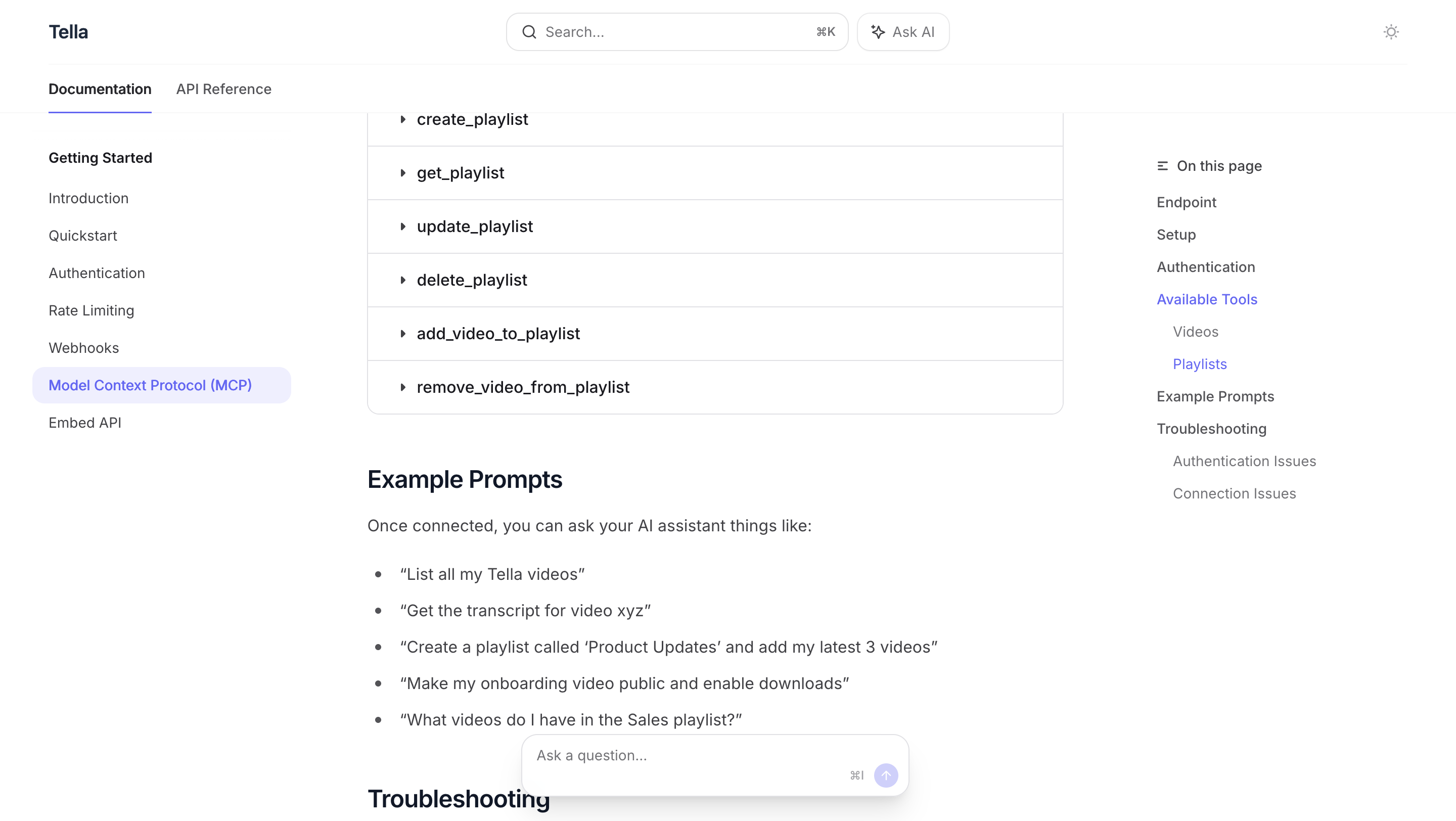
Use Tella’s current video tools reference for the connected tool schema. The server now covers more than the original eleven-tool overview. Exact availability can differ between clients, so inspect the advertised inputs before calling a tool.
| Task | Tool examples | Important input |
|---|---|---|
| List a library page | list_videos | limit, optional cursor or playlistId |
| Search titles or transcripts | search_videos | query, optional searchIn |
| Read one video | get_video | videoId, optional transcript and chapter flags |
| Create a trimmed copy | duplicate_video | videoId, name, start/end seconds or chapter index |
| Start and inspect an export | export_video, get_export_status | Video ID and returned export ID |
| Manage playlist membership | Playlist tools | Confirm video and playlist IDs before changing membership |
get_video returns summary data by default. Request includeTranscript or includeChapters when needed.
duplicate_video uses seconds for startTime and endTime; many editing tools use milliseconds.
Do not copy one tool’s time unit into another.
Keep reads and proposed edits separate. For a batch, review a table of exact video IDs, old values, and proposed values. Approve a bounded set, apply it, then read back the results. An assistant response is not proof that every requested change succeeded.
Real-World Workflows
Here are practical ways to use Tella MCP in your daily workflow:
Content Audit
Task: Understand what content you have and how it's performing.
Commands:
"List all my videos from the last 30 days"
"Which videos have the most views?"
"Show me all videos longer than 10 minutes"
Bulk Organization
Task: Organize 100+ videos into topic-based playlists.
Commands:
"Create playlists for: Product Demos, Client Testimonials, Training Videos, and Behind the Scenes"

"Read these five video transcripts and propose playlist assignments. Return exact IDs. Do not change anything yet."
Content Analysis
Task: Find themes across your video library.
Commands:
"Get transcripts from my top 10 most-viewed videos"
"Analyze these transcripts and identify common topics and themes"
"Create a summary of what resonates most with my audience"
Privacy Management
Task: Update privacy settings across multiple videos.
Commands:
"List videos in my Draft playlist with their current privacy. Propose exact changes for review."
"Identify public videos older than six months. Return a privacy review table without editing them."
Metadata Updates
Task: Improve discoverability with better descriptions.
Commands:
"Read the transcript from video vid_123abc and write a compelling description based on the content"
"Update the description with this new version"
Research and Planning
Task: Plan new content based on existing videos.
Commands:
"Show me all videos about automation"
"Read their transcripts and identify gaps in coverage"
"Suggest 5 new video topics that would complement this content"
Tips for Getting Started
Start with Simple Queries:
- Begin by just browsing: "Show me all my videos"
- Get comfortable with natural language commands
- Explore one tool at a time
Use Specific References:
- Video IDs are more reliable than titles (titles can change)
- When possible, use playlist IDs for precision
- Claude will help you find IDs if you describe what you're looking for
Combine Tools for Power Workflows:
- First
list_videosto find what you need - Then
get_videofor detailed information - Review the exact proposed changes before requesting
update_videoor a playlist action
Let Claude Guide You:
- Ask "What can you do with my Tella videos?"
- Describe your goal and let Claude figure out which tools to use
- Don't worry about knowing exact parameter names
Think in Workflows, Not Commands:
- Instead of: "Use list_videos with limit 50"
- Try: "Help me find all my product demo videos so I can organize them"
The Power of Natural Language
An assistant can call the connected tool instead of asking you to build a request. Compare these approaches:
Traditional API Approach:
const url = new URL('https://api.tella.com/v1/videos');
url.searchParams.set('limit', '20');
url.searchParams.set('playlistId', 'pl_123');
const response = await fetch(url, {
  headers: { Authorization: `Bearer ${process.env.TELLA_TOKEN}` }
});
if (!response.ok) throw new Error(`Tella request failed: ${response.status}`);
const page = await response.json();
MCP Approach:
"Show me the videos in my Client Work playlist"
Same result, zero code.
What's Next?
Now that you understand the basics of Tella MCP, you can:
- Organize your library - Create playlists and structure your content
- Analyze your content - Use transcripts to understand what's working
- Automate repetitive tasks - Bulk update settings, descriptions, privacy
- Plan new content - Research gaps and opportunities in your video library
Key Takeaways
Now that you understand Tella MCP, you can:
- Connect Claude to your Tella workspace - Install and configure MCP in Claude Desktop for seamless video management
- Manage videos with natural language - List, update, duplicate, and organize videos through conversation
- Create and organize playlists - Build topic-based collections and manage video organization automatically
- Automate repetitive tasks - Bulk update privacy settings, descriptions, and metadata across your library
- Extract and analyze transcripts - Use video transcripts for content repurposing and analysis
Next Step: Turn video transcripts into an article draft
Resources
- Tella MCP Documentation - Official setup guide and API reference
- Model Context Protocol - Learn about the MCP standard
- Claude Desktop Download - Get the latest version of Claude Desktop
- Tella API Documentation - Explore all Tella API capabilities
Tools Mentioned
- Tella - Screen recording and video editing platform
- Claude Desktop - AI assistant with MCP support
FAQ
Q: Should I use the GUI method or config file method to install?
A: Use the GUI method if you're new to MCP or prefer a visual interface. It's easier and requires no file editing. Use the config file method if you're comfortable editing JSON files or want to manage multiple MCP servers programmatically.
Q: Does this work with ChatGPT or other AI tools?
A: Yes! MCP is a standard protocol that works with Claude Desktop, ChatGPT, and other AI tools that support MCP. This guide focuses on Claude Desktop, but the concepts apply to other platforms. Check your AI tool's documentation for MCP setup instructions.
Q: Do I need coding experience to use Tella MCP?
A: No. Tella MCP uses natural language commands - you just describe what you want to do in plain English, and Claude handles the technical details.
Q: Is Tella MCP free to use?
A: Confirm Tella access and your assistant’s connector support in the intended account. Plan entitlements can change.
Q: Can I use Tella MCP with Claude.ai in the browser?
A: Yes. Tella documents Claude connectors as well as Claude Desktop configuration. Follow the method available in your client.
Q: What happens if authentication fails?
A: Clear the MCP auth cache (rm -rf ~/.mcp-auth), restart Claude Desktop, and try connecting again to initiate a fresh OAuth flow.
Ready to automate your video workflow? Install Tella MCP and start experimenting with these commands today!
Have questions about Tella MCP? Found this guide helpful? Let me know in the comments below or connect with me on social media.
Keep learning
More guides, free videos and course access for existing members, all in one place.
Go to LearnRather have it built for you?
We'll match you with vetted agentic talent who build it with AI, inside the tools you already use.
Schedule a callRelated posts
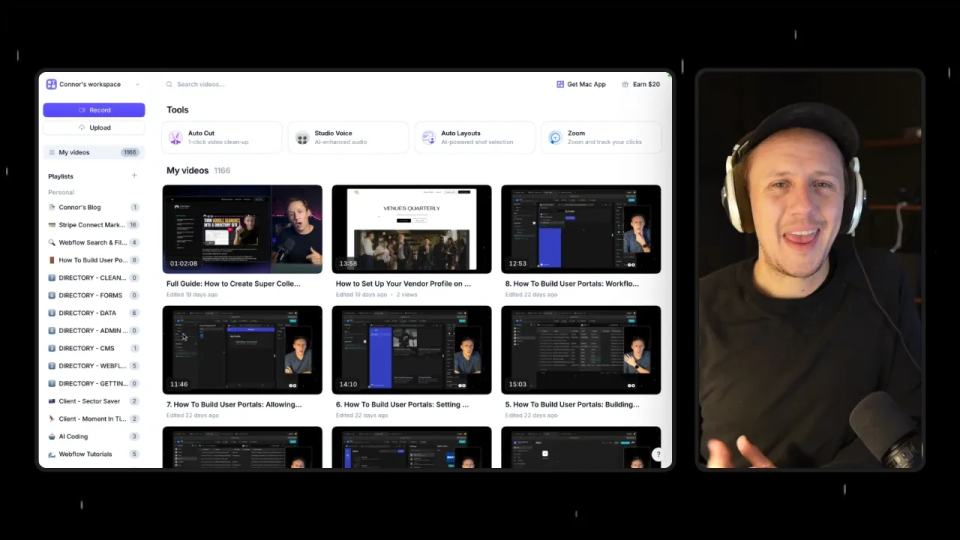
Use the Tella Video API for Library Sync and Blog Drafts
Use Tella API pagination and playlist events for a library sync or reviewed blog draft, with duplicate and readiness checks.
Circle AI Agents Review: Automate Community Management with AI
Read my Circle AI Agent tests, current plan notes, and a support-demand method for evaluating cost and answer quality.

Build Custom AI Agents for Other Businesses
Scope a custom business agent around one workflow, approved sources, read-only testing, and human review.