
Airtable Scripts: How to Bulk Update Multiple Records Easily
An Airtable script can update a selected group of records. Keep that group explicit before changing any values.
 Airtable
An Airtable script can update a selected group of records. Keep that group explicit before changing any values.
This example sets a single-select Status field to Complete in a Tasks table.
Create a view named Ready for completion containing only approved records. Add the Complete option before running the script.
Preview a small batch
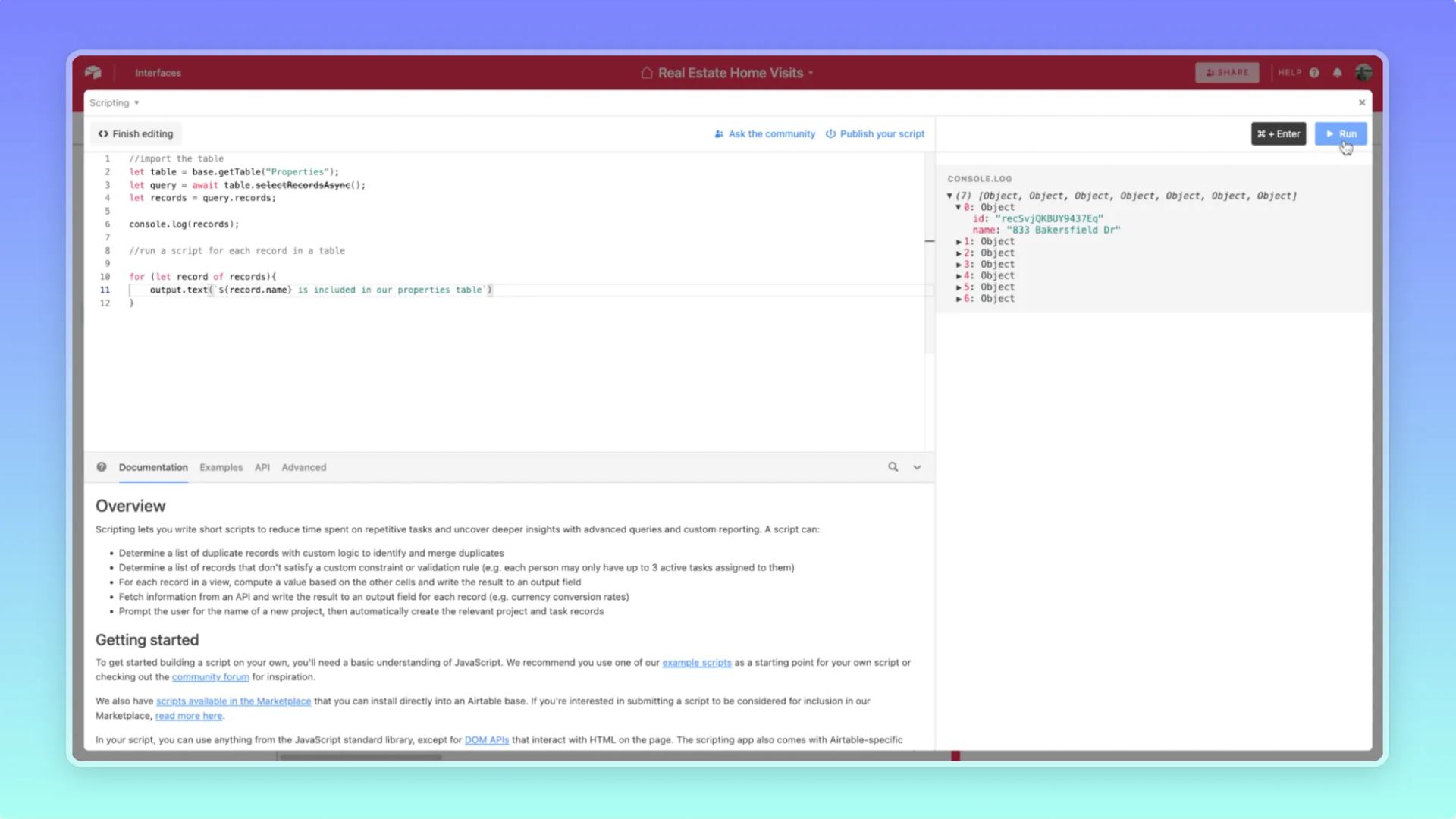
Use the Scripting extension in a copied test base. The example starts with a dry run and a five-record limit.
const table = base.getTable('Tasks');
const view = table.getView('Ready for completion');
const query = await view.selectRecordsAsync({ fields: ['Status'] });
const dryRun = true;
const maxRecords = 5;
let updates = query.records.slice(0, maxRecords).map(record => ({
  id: record.id,
  fields: { Status: { name: 'Complete' } }
}));
output.text(`Selected ${updates.length} records; dryRun=${dryRun}`);
output.text(JSON.stringify(updates, null, 2));
if (!dryRun) {
  while (updates.length) {
    await table.updateRecordsAsync(updates.slice(0, 50));
    updates = updates.slice(50);
  }
  output.text('Selected records updated.');
}
A single-select field uses { name: 'Complete' }. A plain text field uses the string 'Complete' instead.
The script groups writes into batches of no more than 50 records.
Airtable's scripting reference documents the update methods.
Check before increasing the scope
Inspect the selected IDs and field values. Set dryRun to false only when those test records are correct.
Read back all five records and confirm the changed field. Check that unrelated records remain unchanged.
If a batch fails, stop and inspect which records already changed before rerunning.
Keep an export or copied base for recovery before a larger update.
This extension example uses output.text. Automation scripts use different input and output methods.
Read how to pass script results with output.set when moving it into an automation.
Increase maxRecords only after the limited test succeeds.
If scripting is new to you, write your first Airtable script before allowing bulk writes.
Keep learning
More guides, free videos and course access for existing members, all in one place.
Go to LearnRather have it built for you?
We'll match you with vetted agentic talent who build it with AI, inside the tools you already use.
Schedule a callRelated posts

Build Custom AI Agents for Other Businesses
Scope a custom business agent around one workflow, approved sources, read-only testing, and human review.

Durable workflows: how to stop automations disappearing after a button click
Save business changes and queued work together, then use claims, retries, provider checks, and crash recovery.
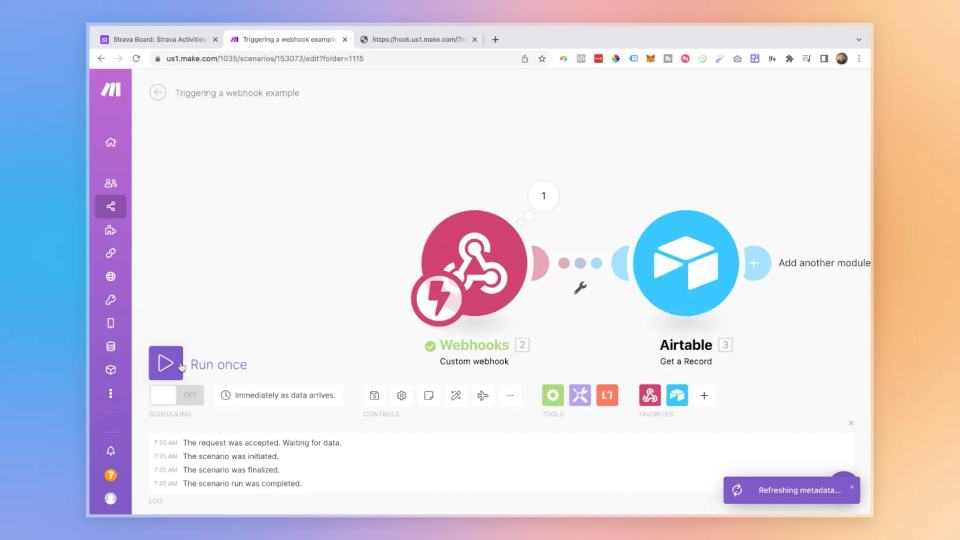
Trigger Make Workflows from Airtable with Webhooks
An Airtable automation can send a record ID to Make through a webhook. Make can then retrieve that record and continue the workflow.