
How To Set Up User-Specific Links in Memberstack
Use Memberstack 2.0 to add member-specific profile links in Webflow, with URL validation and logged-out checks.
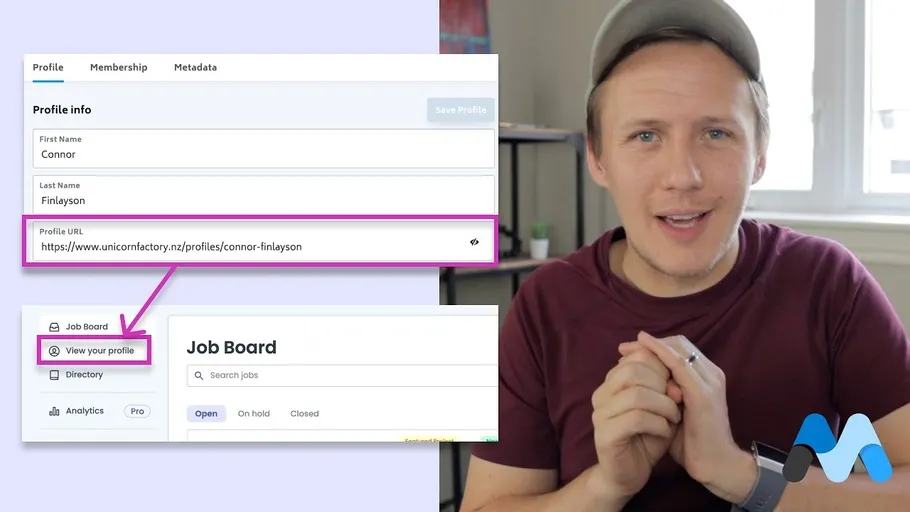
 Memberstack
A freelancer dashboard needs a link to the signed-in freelancer’s profile. Memberstack can store that profile URL.
The original recording uses the older MemberStack.onReady API. This example uses Memberstack 2.0’s DOM package.
Set up the field and link
Create a visible Memberstack custom field with the ID profile-url. Store a profile URL for your test member.
Add data-profile-link="true" to your Webflow link. Hide the link initially with Webflow’s custom attribute hidden="hidden".
Install Memberstack’s current Webflow script first. Place this code after that script in the footer.
<script>
(async () => {
  const links = document.querySelectorAll('[data-profile-link]');
  for (const link of links) {
    link.hidden = true;
    link.removeAttribute('href');
  }
  try {
    if (!window.$memberstackDom) return;
    const { data: member } = await window.$memberstackDom.getCurrentMember();
    const value = member?.customFields?.['profile-url'];
    if (typeof value !== 'string' || !value.trim()) return;
    const url = new URL(value, window.location.origin);
    if (url.protocol !== 'https:' || url.origin !== window.location.origin) return;
    for (const link of links) {
      link.href = url.href;
      link.hidden = false;
    }
  } catch (error) {
    console.error('Profile link could not be loaded.');
  }
})();
</script>
The example permits HTTPS links on your own site. Add explicit trusted origins if profiles live on another domain.
Memberstack’s custom-field documentation explains the customFields response.
Check the different states
Use a test site with two test members. Give each member a different profile URL.
Confirm each member gets their own link. Check an empty field, an invalid URL, and a logged-out visitor.
Those states should keep the link hidden. Test again after logging out and reloading the page.
This link provides navigation. It does not authorize access to the destination profile.
Members can edit visible custom fields. Enforce private profile access in your data service before returning private information.
Start with Webflow memberships if you have not installed Memberstack yet.
Original video
Keep learning
More guides, free videos and course access for existing members, all in one place.
Go to LearnRather have it built for you?
We'll match you with vetted agentic talent who build it with AI, inside the tools you already use.
Schedule a callRelated posts

Build Custom AI Agents for Other Businesses
Scope a custom business agent around one workflow, approved sources, read-only testing, and human review.
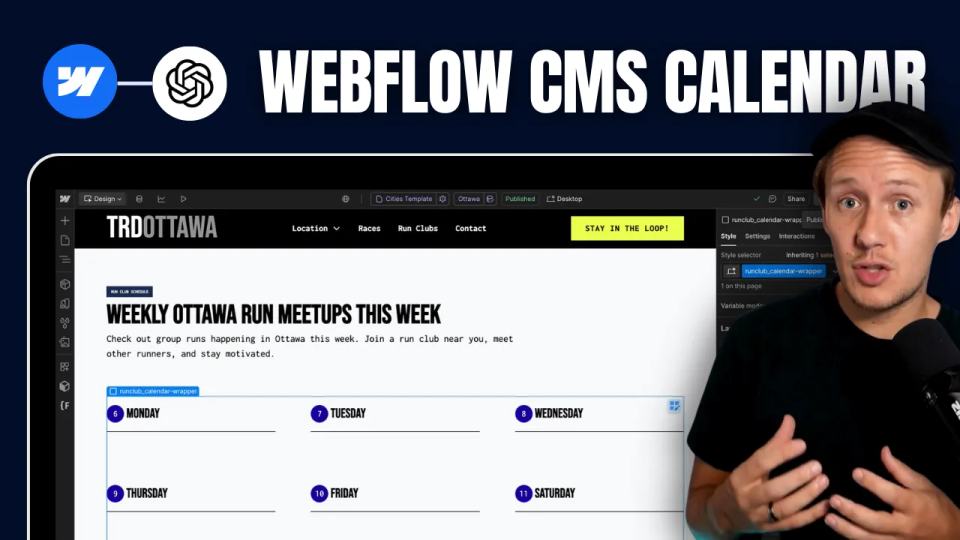
How to Build Custom Webflow CMS Features with ChatGPT & AI
I built a weekly calendar for The Running Directory Canada using Webflow CMS content and ChatGPT-assisted JavaScript. The calendar grouped run-club events by weekday and moved today's day to the front.
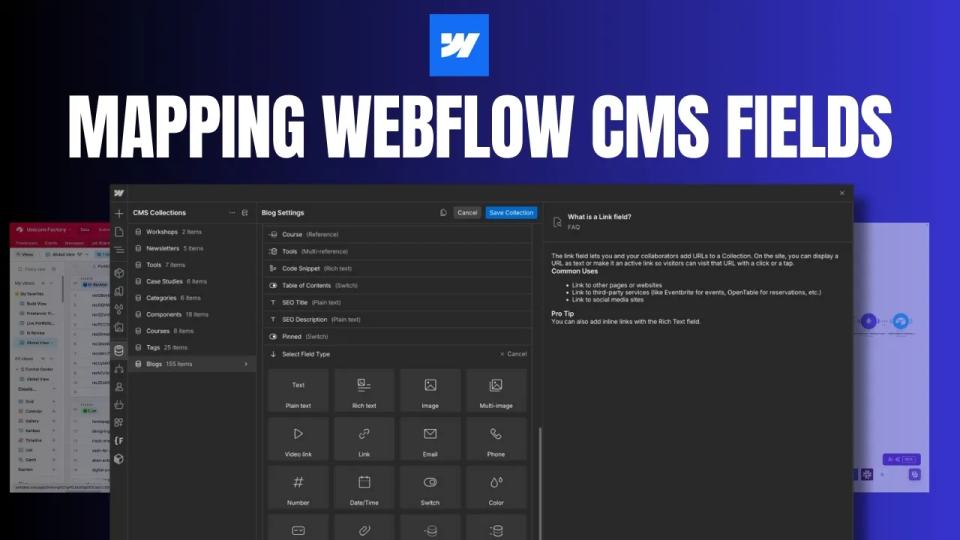
How to Map Common Airtable Fields to Webflow CMS
Map Airtable values to Webflow CMS types using option IDs, image objects, deterministic rich text, and staged JSON examples.