
How To Build A Watchlist Feature in Memberstack
Plan a Webflow saved-items feature with Jetboost and Memberstack, including persistence and separate-user checks.

 Memberstack
 Webflow
A save-for-later page helps members return to listings they want to review.
The original recording combines Webflow, Jetboost, and Memberstack. It covers save buttons, a saved-items page, and logged-out visibility.
Decide what persists
Identify whether your selected Jetboost setup saves items only in the browser or links them to a member account.
Browser storage can disappear when users clear it. Account persistence needs the supported membership connection and a stable member ID.
Do not promise cross-device saves until you test them. Confirm the current setup in Jetboost’s documentation.
Build the saved-items flow
Set up your listing collection and connect the intended Jetboost favorites feature. Add save buttons to the listing cards.
Build a separate saved-items page. Include an empty state and a way to remove a saved listing.
Connect Memberstack using the integration version your Jetboost setup supports. Hide account-only buttons for logged-out visitors.
Hiding a button improves navigation. Private saved records still need ownership checks wherever they are stored.
Check persistence with two users
Save listing A with test member one. Reload, log out, and log back in.
Confirm listing A remains saved if account persistence is your promise. Repeat in another browser or device.
Sign in as test member two. Confirm member one’s saved list does not appear.
Remove listing A and verify the empty state. Check how the page handles a listing that no longer exists.
Set up Webflow memberships before building an account-based saved list.
Recording timestamps
- 01:28: Jetboost setup.
- 03:26: Watchlist buttons.
- 05:18: Saved-items page.
- 08:05: Hiding buttons for logged-out visitors.
Original video
Keep learning
More guides, free videos and course access for existing members, all in one place.
Go to LearnRather have it built for you?
We'll match you with vetted agentic talent who build it with AI, inside the tools you already use.
Schedule a callRelated posts

Build Custom AI Agents for Other Businesses
Scope a custom business agent around one workflow, approved sources, read-only testing, and human review.
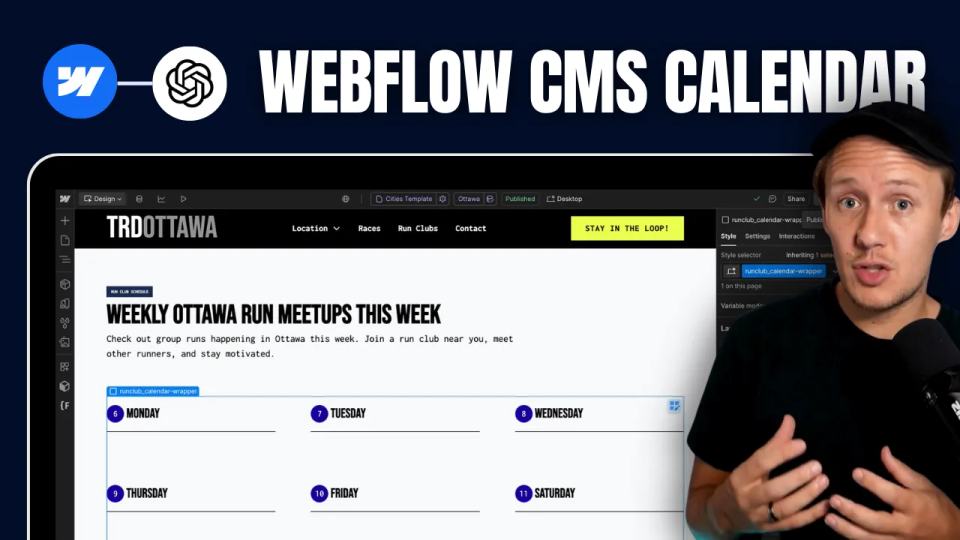
How to Build Custom Webflow CMS Features with ChatGPT & AI
I built a weekly calendar for The Running Directory Canada using Webflow CMS content and ChatGPT-assisted JavaScript. The calendar grouped run-club events by weekday and moved today's day to the front.
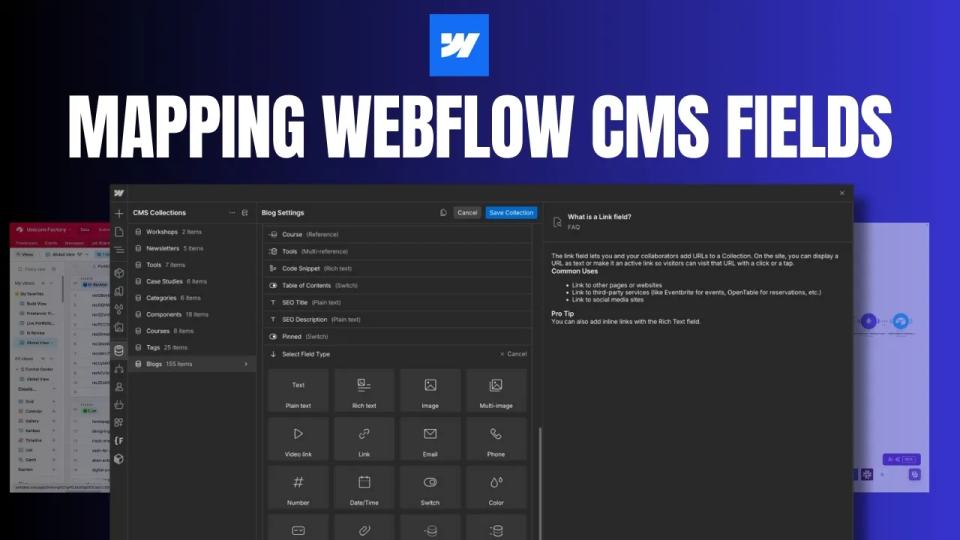
How to Map Common Airtable Fields to Webflow CMS
Map Airtable values to Webflow CMS types using option IDs, image objects, deterministic rich text, and staged JSON examples.