
5 Glide AI Features To Use In Your Next Project
Five AI app patterns for text drafts, knowledge answers, audio transcripts, documents, and receipts, with focused review steps.

 Glide
GlideI built an app that extracts information from receipt and invoice photos for my accounting workflow. That example sits alongside four other ways to use AI in an app. Start with a draft or extracted value that someone can review before it affects a customer or account.
The original video dates from August 2023. Feature names and setup screens can change. Glide's current AI documentation describes its supported transformations for Glide Classic. Check which features your app and plan provide before rebuilding the demonstration.
1. Generate text from a question
Create an input where a user can enter a question or request. Send the input to your selected text-generation feature with clear instructions. Display the answer as a draft, alongside a way to correct it.
At Unicorn Factory, a possible use is helping freelancers draft portfolio content. For this example, supply the freelancer's approved project facts. Ask the model to improve wording without adding clients, results, or skills. A prompt alone does not make an answer accurate.
2. Answer questions from your own information
The recording calls this use case “Ask a Table.” Prepare approved questions and answers in a table before building the interface. Retrieve the relevant answer or pass approved material into a generation step. Do not assume the historical feature name is available in your current app.
A useful onboarding example answers a question using your published process. Show the source and offer a human contact when no answer fits. A table-backed answer can still be wrong if the information is stale or the retrieved row is irrelevant.
3. Turn audio into text
Let a user upload an audio file, then extract its transcript. Keep the transcript separate from any generated summary. For meeting notes, check names, numbers, and decisions against the recording. Ask participants before sending sensitive recordings to another service.
4. Extract text from documents
The original article described Google Cloud Vision for PDF extraction. Glide now documents Document to Text, including PDF support. Choose a supported document as the input and store the extracted text in a separate field. Check reading order and missing sections before using it as a searchable resource.
5. Extract receipt information from an image
Use Image to Text to extract text from a receipt image.
Keep the image, extracted text, proposed accounting fields, and review status together.
A hypothetical review table includes Merchant, Date, Total, Currency, and Approved.
Compare each proposed value with the image before sending it to accounting software.
Do not treat extraction as proof that an invoice is valid or paid.
Choose one small workflow
Start with five non-sensitive examples that cover clear, unclear, and missing input. Record which outputs need correction. For customer-facing uses, see the marketplace AI workflow examples. Connect the next action only after you understand the common errors.
Keep learning
More guides, free videos and course access for existing members, all in one place.
Go to LearnRather have it built for you?
We'll match you with vetted agentic talent who build it with AI, inside the tools you already use.
Schedule a callRelated posts

Circle AI Agents Review: Automate Community Management with AI
Read my Circle AI Agent tests, current plan notes, and a support-demand method for evaluating cost and answer quality.

How to Import Relume Styles and Pages into Webflow
Approve a Relume sitemap and style direction, import one page into Webflow, and check classes, content, and accessibility.
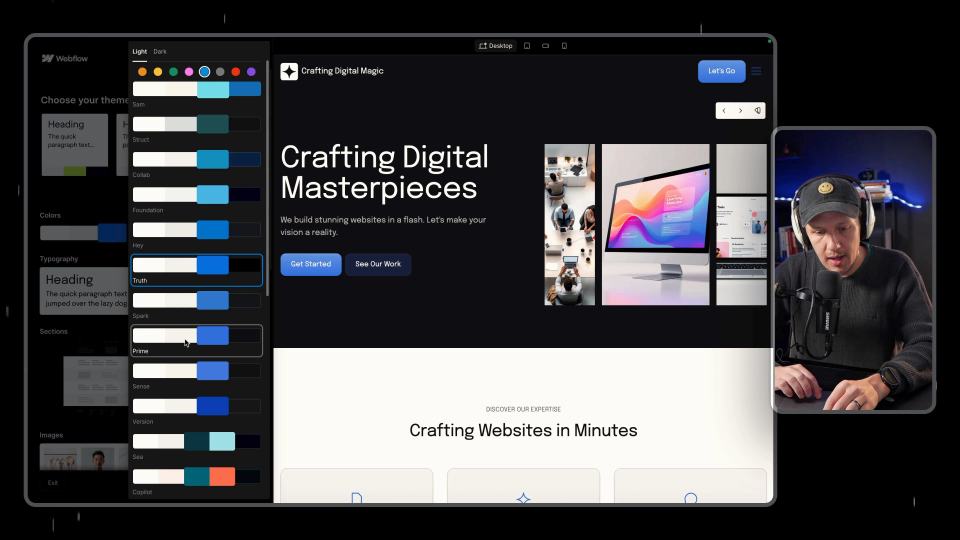
Webflow AI Site Builder: My HueSync First Look
I used a fictional Canadian agency, HueSync, to explore Webflow's AI site builder. The first look showed a useful starting layout, followed by editing work inside Webflow. I still needed to review the copy, images, forms, and mobile spacing.