
6 Webflow Tools To Level Up Your Webflow Builds
Six Webflow tool examples for client feedback, components, interfaces, CMS browsing, and animation, with practical selection checks.

 Webflow
These six tools address feedback, reusable components, app interfaces, CMS browsing, and animation. The original August 2021 tour includes older prices and launch announcements. Those details no longer provide a reliable buying guide. Choose around your project's requirement and check the provider's current plan before paying.
1. Pastel: collect client feedback
Pastel overlays comments on a live website through a shared canvas. Enter your site URL, create a canvas, and share it with reviewers. A reviewer can point to an image and request a replacement. Keep the comment attached to the element so the requested change is clear.
Use it when comments arrive across several channels. Test a desktop and mobile review before inviting the whole client team. The original $19/month figure is historical and is not a current quote.
2. Finsweet Extension: support Designer tasks
The original Chrome extension offered tasks such as breakpoint removal, swatch organisation, and bulk redirects. Finsweet now describes Extension as a native Webflow app. Use its current feature list rather than assuming each historical Chrome feature behaves the same way. Back up important redirect data before a bulk change.
3. Flowbase: reuse page components
Flowbase supplies components you can adapt inside a Webflow project. Choose a component, copy it, then adjust its classes and content to your site's design rules. Check mobile layouts, accessibility, and class conflicts after pasting. The original $39/month figure is historical and is not a current quote. Use a library when the component matches your task, rather than selecting a design only because it looks polished.
4. Wized: connect interfaces to application data
Wized adds requests and interface logic to Webflow pages. Possible projects include login flows, dashboards, and interfaces displaying API responses. Authentication and private-data permissions still depend on the connected backend. Never place a private service key in browser-visible configuration.
The original tour recorded that I had not used Wized yet. My later cover-letter app overview shows a specific project I built.
5. Jetboost: improve CMS browsing
Jetboost offers search, filtering, favourites, and sorting tools for CMS lists. The original “sorting is launching soon” announcement is dated. Choose one browsing problem, then test it with realistic records and empty results. For a different approach, see the Finsweet filtering walkthrough.
6. LottieFiles: add purposeful animation
LottieFiles provides animation resources for projects such as loaders and interface feedback. Use animation to explain a state or action. Measure the actual file and page performance rather than assuming every animation is lightweight. Provide a reduced-motion experience when motion is unnecessary.
Pick one tool and define the improvement you expect before installing it.
Keep learning
More guides, free videos and course access for existing members, all in one place.
Go to LearnRather have it built for you?
We'll match you with vetted agentic talent who build it with AI, inside the tools you already use.
Schedule a callRelated posts

Circle AI Agents Review: Automate Community Management with AI
Read my Circle AI Agent tests, current plan notes, and a support-demand method for evaluating cost and answer quality.

How to Import Relume Styles and Pages into Webflow
Approve a Relume sitemap and style direction, import one page into Webflow, and check classes, content, and accessibility.
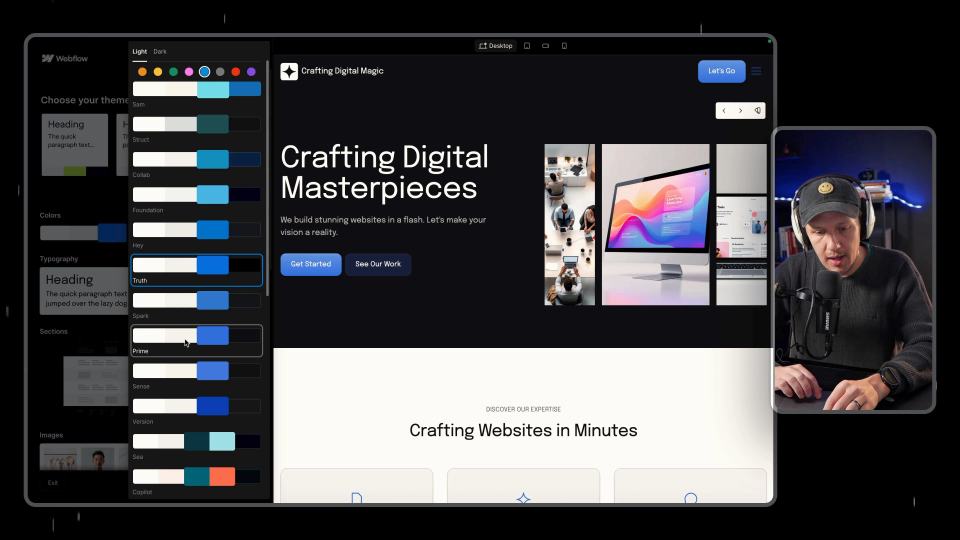
Webflow AI Site Builder: My HueSync First Look
I used a fictional Canadian agency, HueSync, to explore Webflow's AI site builder. The first look showed a useful starting layout, followed by editing work inside Webflow. I still needed to review the copy, images, forms, and mobile spacing.