
How To Build Advanced Search and Filtering For Your Webflow Site
Build a book search and filter page with numeric sorting, GA4 page-view imports, consistent URL matching, and Airtable-to-Webflow sync.

 Webflow
 Finsweet
The Booknotes.ai example connects a searchable book list with page-view data. Relume supplies the filter layout. Finsweet handles browsing controls. Data Fetcher imports analytics into Airtable, and Whalesync sends the selected values to Webflow. The original December 2022 video uses older Finsweet naming and analytics screens.
Prepare the book records
Create a Books collection with Name, Slug, Author, Category, Pages, Added Date, and Page Views.
Use numeric fields for Pages and Page Views.
Keep a matching Page Path in Airtable, such as /book/test-book.
Use zero for a confirmed period with no recorded views. Keep missing imports distinct from zero.
For a hypothetical test, use these three records:
| Name | Category | Pages | Page Views |
|---|---|---|---|
| Test Book A | Business | 120 | 25 |
| Test Book B | Design | 300 | 5 |
| Test Book C | Business | 200 | 0 |
Add the Relume category filter layout
Choose a category-filter component and replace its product cards with your Books collection list. Keep the search input, category controls, result count, and empty state. Check the imported classes against your Client-First styles. The original workflow enabled Relume class sync to preserve styling during imports. Check current import options before using the older recording's settings.
Connect current Finsweet filtering attributes
Finsweet's List Filter documentation now uses the shared Attributes v2 script.
Do not mix the older fs-cmsfilter setup with the current fs-list attributes.
Use the provider's complete setup for your chosen version.
For the current filter, connect these elements:
| Element | Attribute | Value |
|---|---|---|
| Collection List | fs-list-element | list |
| Filter Form | fs-list-element | filters |
| Search input and searchable book text | fs-list-field | search |
| Category control and book category text | fs-list-field | category |
Use identical field identifiers on the input and the corresponding card values. A hidden text element can hold additional searchable text. Hidden content remains available to the browser, so keep private data out of it.
Add sorting
The original demonstration sorts alphabetically, by page count, and by date added.
Add sorting using the current List Sort instructions for the same Attributes version.
Keep numeric values numeric; 100 must sort above 20 for popularity.
Test the default order and each control before importing analytics.
Import Google Analytics 4 page views
Create a Data Fetcher request against the correct GA4 property and date range.
Use the page path or page location as the grouping field.
Filter to book detail pages, such as paths beginning with /book/.
Import the views measure rather than treating users or sessions as views.
Google documents the available dimensions and metrics.
Keep your matching key consistent. A path such as /book/test-book differs from a full URL.
Choose one representation and normalise trailing slashes and query parameters deliberately.
Data Fetcher's GA4 guide explains matching imports to existing URL records.
Use update mode and disable leftover-record creation when the import should only update existing books.
Do not add the same period's count repeatedly. Replace the count for your chosen period. Use a separate field if you also want a lifetime total.
Sync views with Whalesync
Map Airtable's numeric count to Webflow's Page Views field.
Whalesync documents supported Webflow fields and publishing requirements.
Make one test update and check the matching book's count in Webflow.
Confirm the intended publish step before expecting the public list to change.
Check the complete example
Search for Test Book A, then filter to Business.
Confirm the result set contains the two Business books.
Sort by page count and then views. Check zero views and a missing analytics match separately.
Repeat on mobile and check the empty-search state.
For the underlying record update process, see the Airtable-to-Webflow guide.
Start with three test books before scheduling the analytics import.
Keep learning
More guides, free videos and course access for existing members, all in one place.
Go to LearnRather have it built for you?
We'll match you with vetted agentic talent who build it with AI, inside the tools you already use.
Schedule a callRelated posts

Build Custom AI Agents for Other Businesses
Scope a custom business agent around one workflow, approved sources, read-only testing, and human review.
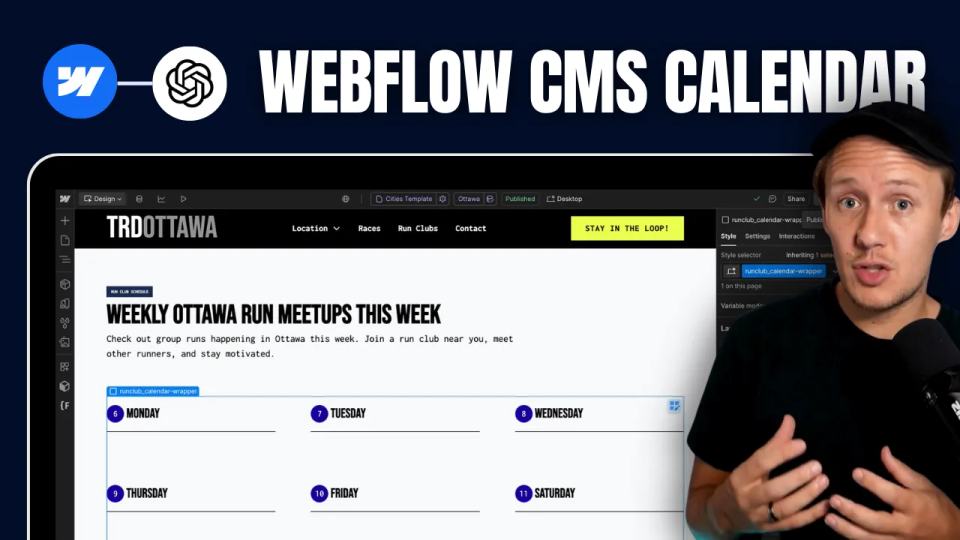
How to Build Custom Webflow CMS Features with ChatGPT & AI
I built a weekly calendar for The Running Directory Canada using Webflow CMS content and ChatGPT-assisted JavaScript. The calendar grouped run-club events by weekday and moved today's day to the front.
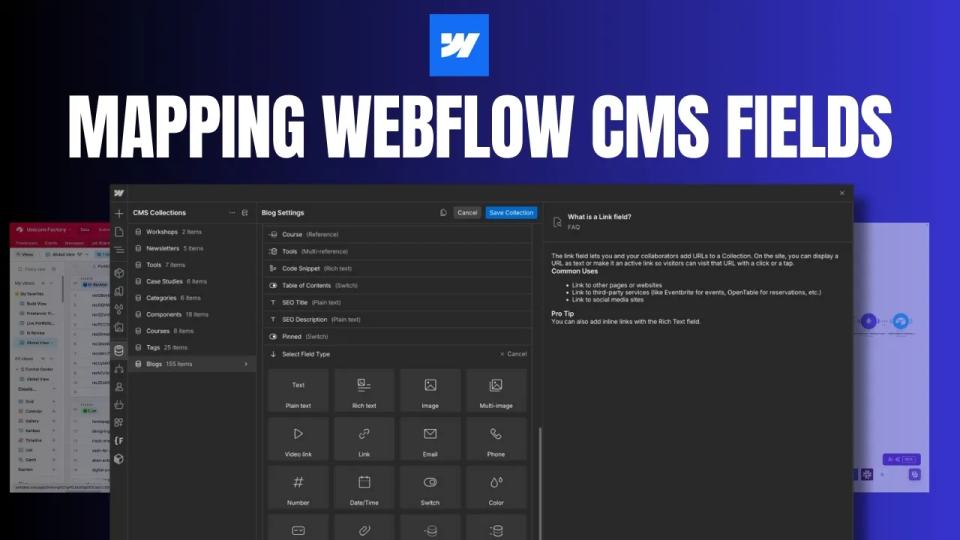
How to Map Common Airtable Fields to Webflow CMS
Map Airtable values to Webflow CMS types using option IDs, image objects, deterministic rich text, and staged JSON examples.