
How To Setup Conditional Forms in Webflow
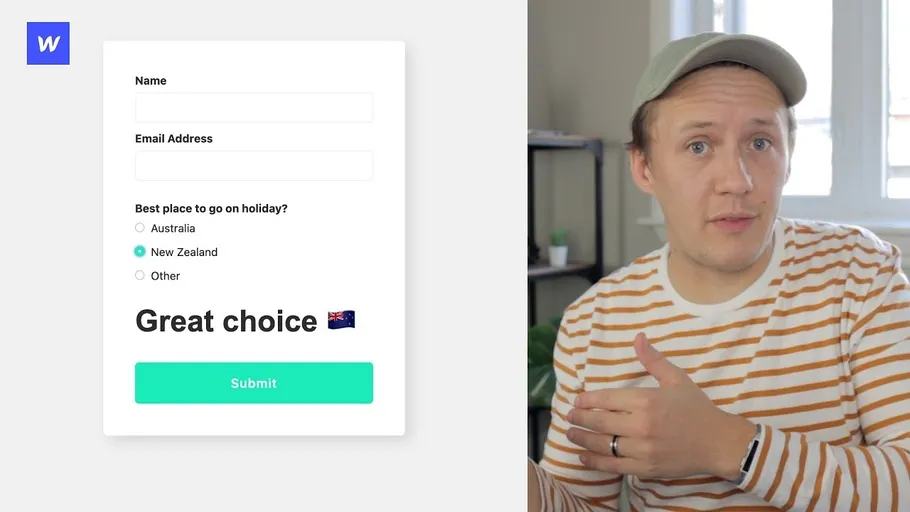
Use Webflow interactions to show form questions. Understand default states, required fields, and branch submission checks.
 Webflow
Watch: How To Setup Conditional Forms in Webflow
How do you create conditional logic in Webflow forms without using any third-party plugins or integrations? You can use Webflow Animations to display or hide certain question fields based on a selection that a website visitor made. And in this step-by-step tutorial, I show you how. This is a Webflow Animation Beginners Tutorial. LINKS: https://www.connorfinlayson.com https://form-with-options.webflow.io/ https://webflow.com/website/Create-conditional-logic-in-forms-with-Webflow-Animation?s=form-with-options TIMESTAMPS:
- 00:00 Intro
- 01:17 Example Form with Conditional Logic
- 02:10 Set up with Form in Webflow
- 03:36 Setting the state when the page loads
- 05:05 When the second options is selected
- 06:32 When the first option is reselected
- 06:45 When the third option is selected
Visibility and validation are separate
This 2021 lesson uses Webflow interactions to show different question groups. It demonstrates visual branching. Hiding a question does not automatically change validation or clear its submitted value.
- Group the questions for each option in separate wrappers.
- Set the initial state to show only the first option's questions.
- For each selection, show its wrapper and hide every other wrapper.
- Select another option, then return to the first. Confirm the first state resets correctly.
- Submit each branch with optional fields empty. Inspect the received submission.
Keep hidden branch fields optional when using only visual interactions.
If a question must become required conditionally, add a solution that explicitly manages required and disabled states.
Reject irrelevant branch values when processing the submission.
Test the controls with a keyboard and on a small screen. Use visible labels for each choice. Once your form works, track its submissions before adding further automation.
Keep learning
More guides, free videos and course access for existing members, all in one place.
Go to LearnRather have it built for you?
We'll match you with vetted agentic talent who build it with AI, inside the tools you already use.
Schedule a callRelated posts

Build Custom AI Agents for Other Businesses
Scope a custom business agent around one workflow, approved sources, read-only testing, and human review.
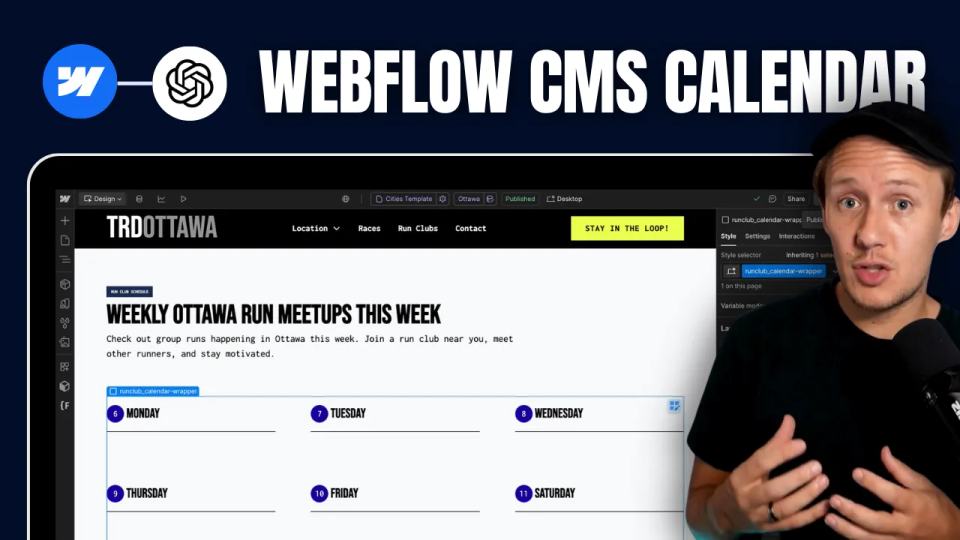
How to Build Custom Webflow CMS Features with ChatGPT & AI
I built a weekly calendar for The Running Directory Canada using Webflow CMS content and ChatGPT-assisted JavaScript. The calendar grouped run-club events by weekday and moved today's day to the front.
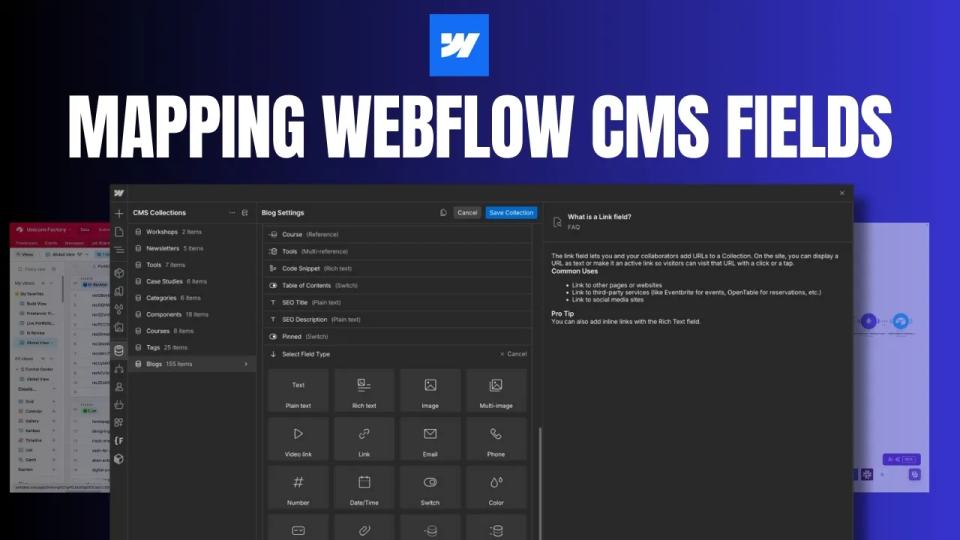
How to Map Common Airtable Fields to Webflow CMS
Map Airtable values to Webflow CMS types using option IDs, image objects, deterministic rich text, and staged JSON examples.