
Relume Class Sync: How To Automatically Apply Your Webflow Styles To New Components
Use Relume Class Sync to match incoming Webflow classes, inspect collisions, and clean up existing duplicates.
 Relume
Watch: Relume Class Sync: How To Automatically Apply Your Webflow Styles To New Components
Match a pasted component to existing classes
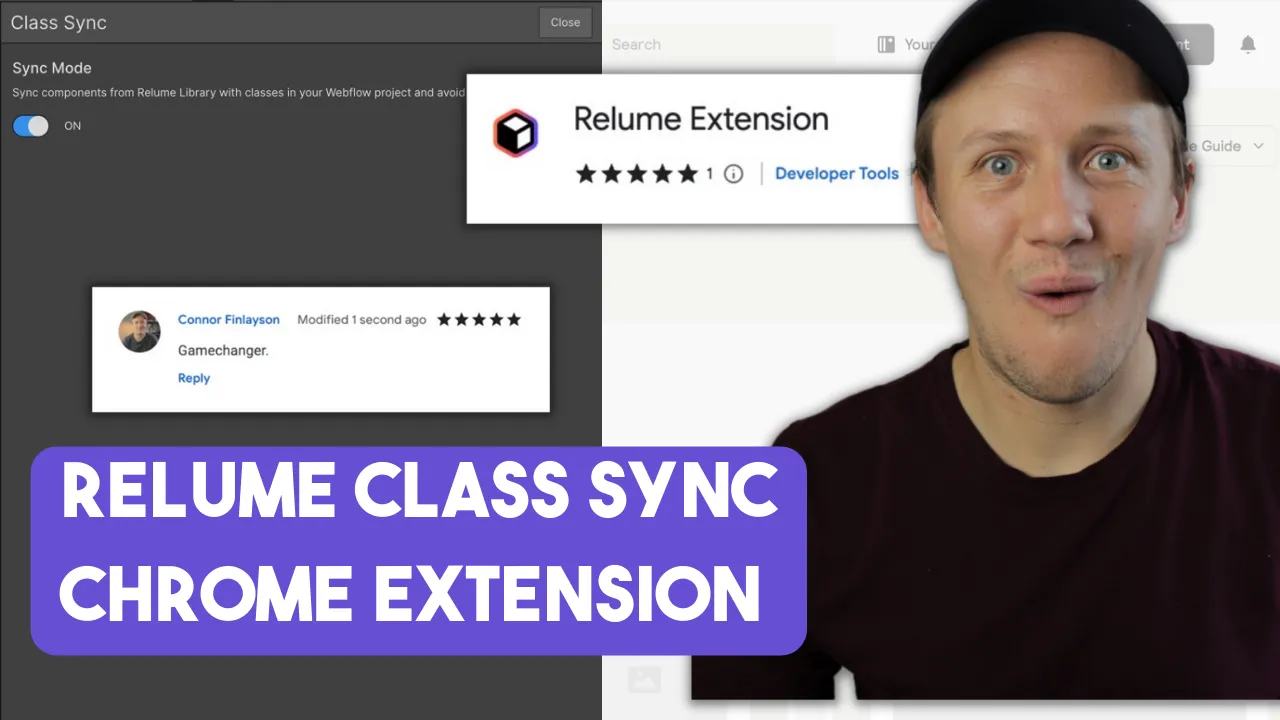
Relume’s Class Sync guide explains how its Chrome extension handles matching class names. It makes incoming styles match the existing Webflow project's styles when Class Sync is enabled.
For example, your project already has a button class with a 1rem border radius.
Paste a component that also uses button. Check whether it keeps the existing button style instead of creating button 2.
Use the intended Relume style guide and consistent class names.
A renamed class is not the same class merely because it looks similar.
Existing duplicate classes still need manual cleanup. Class Sync does not redesign every imported component. Inspect base classes and combo classes before replacing duplicates. Check the component's mobile layout and interaction states after pasting. For a larger import, follow the Relume-to-Webflow workflow and start with one page.
A clear Webflow building process helps you decide which class conventions to preserve.
Keep learning
More guides, free videos and course access for existing members, all in one place.
Go to LearnRather have it built for you?
We'll match you with vetted agentic talent who build it with AI, inside the tools you already use.
Schedule a callRelated posts

Circle AI Agents Review: Automate Community Management with AI
Read my Circle AI Agent tests, current plan notes, and a support-demand method for evaluating cost and answer quality.

How to Import Relume Styles and Pages into Webflow
Approve a Relume sitemap and style direction, import one page into Webflow, and check classes, content, and accessibility.
Webflow AI Site Builder: My HueSync First Look
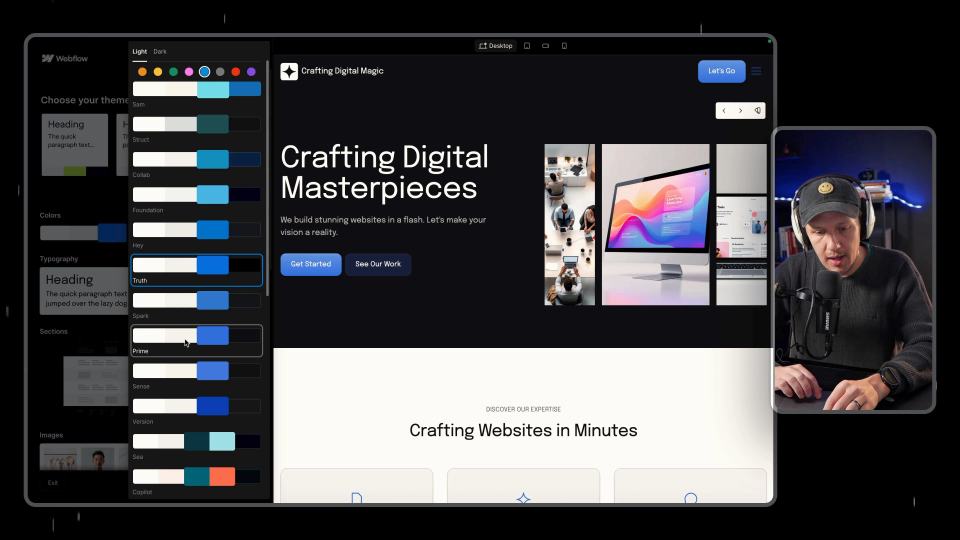
I used a fictional Canadian agency, HueSync, to explore Webflow's AI site builder. The first look showed a useful starting layout, followed by editing work inside Webflow. I still needed to review the copy, images, forms, and mobile spacing.