
Durable workflows: how to stop automations disappearing after a button click
Save business changes and queued work together, then use claims, retries, provider checks, and crash recovery.

TL;DR
A background workflow can disappear after the main database change succeeds. The screen shows success, but the follow-up never starts.
A durable workflow records work that still needs to happen. Save its queue item in the same database transaction as the business change. A worker can then retry it, avoid duplicate side effects, or show it for review.
The failure that is easy to miss
If you come from Make, Zapier, or another no-code tool, a workflow usually feels simple:
- Something changes.
- The scenario runs.
- An email is sent, a record is updated, or someone is notified.
That model hides a question. How does the workflow get from "something changed" to "the work will definitely be attempted"?
For small automations, it is easy to assume that handoff always works. Keep trigger views clear as the workflow grows. In a production app, the button can show success while the follow-up never happens.
Imagine an admin approving a job listing. The expected outcome is straightforward:
- the job becomes Live;
- the client receives an approval email;
- the legacy CMS or Airtable record is updated;
- the action appears in workflow history.
A common implementation looks like this:
Save the job as Live
Return success to the Admin screen
Start the approval workflow in the background
This keeps the screen quick. It also creates a gap between the second and third lines. The handoff might time out, lose credentials, or never start. The job remains Live, but the follow-up has no durable record.
In Make, an incoming webhook can be accepted into a queue before scenario work finishes. A 200 response therefore means accepted, not completed. Processing mode, queue behavior, and retry details depend on scenario settings and plan. See Make's current webhook documentation before relying on a specific behavior.
The practical fix: save a workflow to-do item
The pattern is often called an outbox or durable workflow queue. The name matters less than the idea.
When the business change is saved, create one database row that says:
This workflow still needs to run.
For example:
| Field | Example |
|---|---|
| Workflow | job_board.status_changed |
| Record | This specific job |
| Change | Listing in review to Live |
| Status | queued |
| Attempts | 0 |
| Payload | The original status change and reason |
Save the job update and queue row in one database transaction. PostgreSQL describes a transaction as an all-or-nothing operation. If one step fails, the database rolls back the other step.
That protection covers database writes only. It does not confirm that MailerSend, Airtable, Slack, or another provider accepted the later request. The worker still needs execution records and provider evidence.
Approve job
  -> save job as Live
  -> save "run approval workflow" queue row
  -> show success in Admin
What the queue represents
Some no-code platforms provide parts of this model. Their queues, responses, retries, retention, and limits vary. Treat provider documentation as the source for those details.
| In an app | Rough no-code equivalent |
|---|---|
| A workflow queue row | A queued bundle or data-store row |
| A worker | A scheduled scenario that picks up work |
| A workflow run | Scenario execution history |
| An email task | One item for one recipient |
You do not need a separate queue for every feature. One shared workflow_dispatch_jobs table can carry jobs for approvals, decisions, support replies, onboarding, and other important actions.
What happens after an item is queued
A scheduled worker checks for queued jobs every minute or few minutes. The interval depends on latency needs and platform limits.
For each job, it:
- Claims the job so another worker cannot process it at the same time.
- Runs the workflow with the original payload.
- Records the result and any provider reference.
- Marks the job as succeeded, retryable, or needing attention.
A healthy lifecycle looks like this:
queued -> running -> succeeded
If a provider has a temporary outage, the job can return to the queue:
queued -> running -> queued for a later retry
After a defined number of failed attempts, use a dead_letter state. That means the system stopped retrying and needs an operator to review this item.
A retry policy should define the delay, maximum attempts, and final state. Those values depend on the provider and business action.
Retries do not mean exactly once
Retries are useful only when side effects can be repeated safely.
Consider an approval email. The worker might send it successfully, then crash before recording success. A retry can send the same email twice.
Give the intended email task a stable identity, such as:
job approval + transition ID + recipient email
The transition ID matters. It allows a later, legitimate reapproval to create a new task.
Enforce a unique key on that task identity. Claim or insert it atomically, so two workers cannot both see an empty lookup and create duplicates.
If the provider supports idempotency keys, reuse the same key on retries. If the worker may have sent the request but lost its record, reconcile the provider status before retrying. No design can promise exactly-once delivery across separate systems.
For a notification to 100 people, use two layers:
One workflow job
  -> plans the notification
  -> creates one email task per recipient
  -> a bounded email worker sends small batches
The workflow continues from saved progress. Do not assume one long request can safely perform every send. Request runtimes can terminate long invocations. For example, Vercel Functions enforce a configurable maximum duration, and settings vary by runtime and plan.
Recover a worker that stops while running
Give each claim an expiry time and worker identity. A crashed worker must not leave its job locked forever.
After the claim expires, reconcile any uncertain provider effects. Then make the job eligible for another bounded attempt.
Use a heartbeat for long work and reject updates from an expired worker. Keep attempts and last errors visible to operators.
Test a worker stop after claiming and after a provider response. Confirm recovery preserves the original task identity.
Keep the original change
A job might move from In Review to Live, then quickly move to Closed. If the worker reads only the current record, it may misunderstand the first change.
Store the original transition in the queue payload:
{
  "previousStatus": "Listing in review",
  "nextStatus": "Live",
  "reason": null
}
The worker can decide whether to run the original action, skip it as stale, or flag it. It should not silently guess.
Dry-run mode
A dry run uses the real queue and worker but stops before live side effects. It can:
- create and claim a queue row;
- validate the record and workflow routing;
- show planned email, Airtable, Slack, or other effects;
- write execution evidence;
- send no emails and make no external writes.
Restrict dry runs to tagged test records. Require an explicit operator action before any live effect.
What should use a durable queue?
Use the queue when losing the action would create a meaningful business problem:
- approving or rejecting a job;
- approving, waitlisting, or rejecting a freelancer;
- submitting a customer application;
- sending a support reply notification;
- completing onboarding.
Activity analytics, cache refreshes, image optimisation, and non-critical enrichment can remain best-effort work. If the action can be recalculated safely, it may not need a durable queue.
A manageable operating model
A practical setup has one shared workflow queue, one worker, and the existing per-email task queue for fan-out. Add one Admin view for Queued, Retrying, Needs attention, and Completed. Add a dry-run control for test records.
The takeaway
The goal is not to make workflows slower. It is to make an important promise true:
When a button says an important action worked, the follow-up will run, retry safely, or appear clearly for review.
Start with one business action. Save its queue row in the same transaction. Then add claims, idempotency checks, provider evidence, and a small retry policy as the workflow needs them.
Keep learning
More guides, free videos and course access for existing members, all in one place.
Go to LearnRather have it built for you?
We'll match you with vetted agentic talent who build it with AI, inside the tools you already use.
Schedule a callRelated posts
Use the Tella Video API for Library Sync and Blog Drafts
Use Tella API pagination and playlist events for a library sync or reviewed blog draft, with duplicate and readiness checks.

Build Custom AI Agents for Other Businesses
Scope a custom business agent around one workflow, approved sources, read-only testing, and human review.
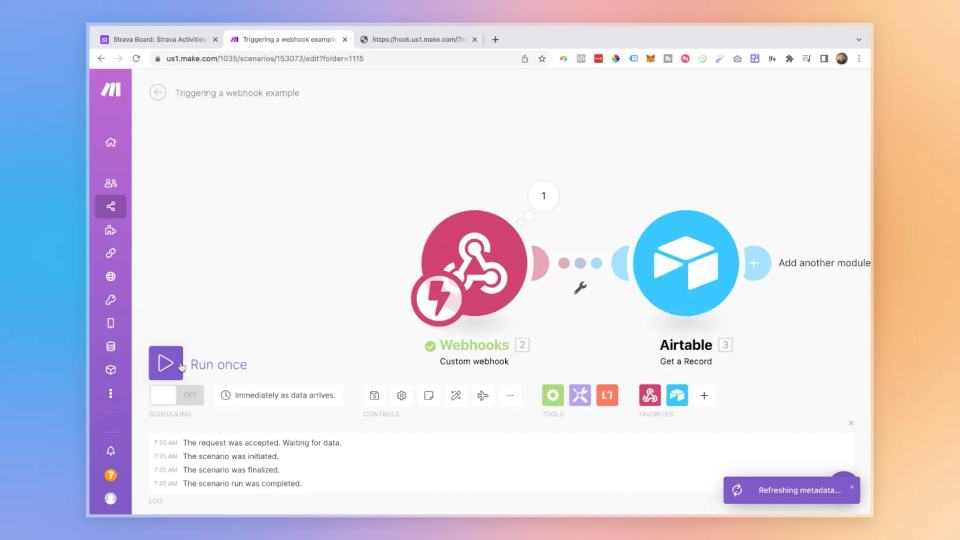
Trigger Make Workflows from Airtable with Webhooks
An Airtable automation can send a record ID to Make through a webhook. Make can then retrieve that record and continue the workflow.