
Zapier Crash Course: Organize a YouTube Project from Airtable
My example Zap starts when a YouTube idea becomes ready for production in Airtable. It creates a Drive folder, a script document, and a Calendar event. Start with one.

 Zapier
My example Zap starts when a YouTube idea becomes ready for production in Airtable. It creates a Drive folder, a script document, and a Calendar event. Start with one test video before automating your whole production list.
Prepare the Airtable record
Create Title, Stage, Start Time, End Time, Folder ID, Document ID, Event ID, and Automation Status fields. Use an Up Next grid view filtered to ready records. Zapier's Airtable guidance notes grid-view support and empty-record behavior. Keep incomplete records out of the view.
Choose Airtable's New Record in View trigger and select that view. Do not assume moving an already-seen record out and back creates a new trigger event. Use an explicit retry process for failed work.
Create the production folder
Add Google Drive's Create Folder action. Select a permitted test parent folder, such as YouTube Videos — Test. Map the title into the new folder name. Save the returned Folder ID to Airtable immediately. Before creating another folder on retry, use the saved ID or search for the existing one.
Create the script document
Add Google Docs' Create Document from Text action. Name it from the video title and use a simple outline:
About this video
Opening
Demonstration
Checks before publishing
Next step
Save the returned Document ID. If the Docs action does not support the target folder, follow it with Google Drive's Move File action. Use the Folder ID from the previous step rather than searching only by its display name.
Schedule the event
Add Google Calendar's Create Detailed Event action.
Map both start and end times, plus the video title.
Choose the intended calendar and confirm its timezone.
An illustrative Toronto event uses 2026-10-15T09:00:00-04:00 through 2026-10-15T09:30:00-04:00.
Those offsets apply to that example date. Other dates can require different daylight-saving offsets.
Save Event ID and Automation Status after success. Do not mark the workflow complete when only the folder exists. If Calendar fails, resume from the saved folder and document rather than creating both again.
Measure the benefit
Measure manual time, successful runs, setup time, and maintenance before estimating savings. A hypothetical 20 runs saving three minutes each produce 60 minutes of gross savings. Subtract 30 setup minutes and 10 maintenance minutes to get 20 minutes of net savings.
This multi-action workflow needs the connector actions and plan limits available in your account. Check Zapier's current plan before enabling it. Run with test folders and calendars because action tests create real records.
For instant event-driven alternatives, understand webhook triggers. Then trigger Make from Airtable if that fits your production process better.
Keep learning
More guides, free videos and course access for existing members, all in one place.
Go to LearnRather have it built for you?
We'll match you with vetted agentic talent who build it with AI, inside the tools you already use.
Schedule a callRelated posts

Circle AI Agents Review: Automate Community Management with AI
Read my Circle AI Agent tests, current plan notes, and a support-demand method for evaluating cost and answer quality.
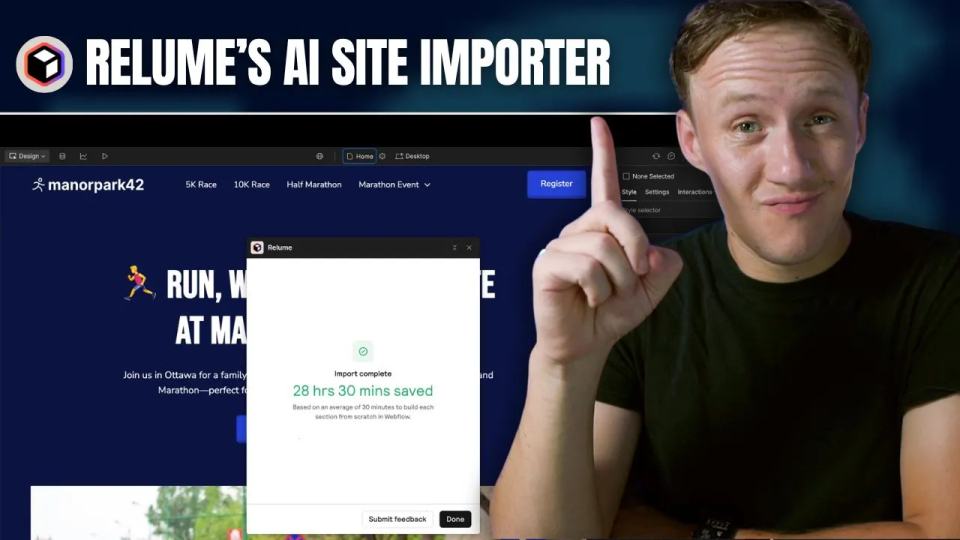
How to Import Relume Styles and Pages into Webflow
Approve a Relume sitemap and style direction, import one page into Webflow, and check classes, content, and accessibility.
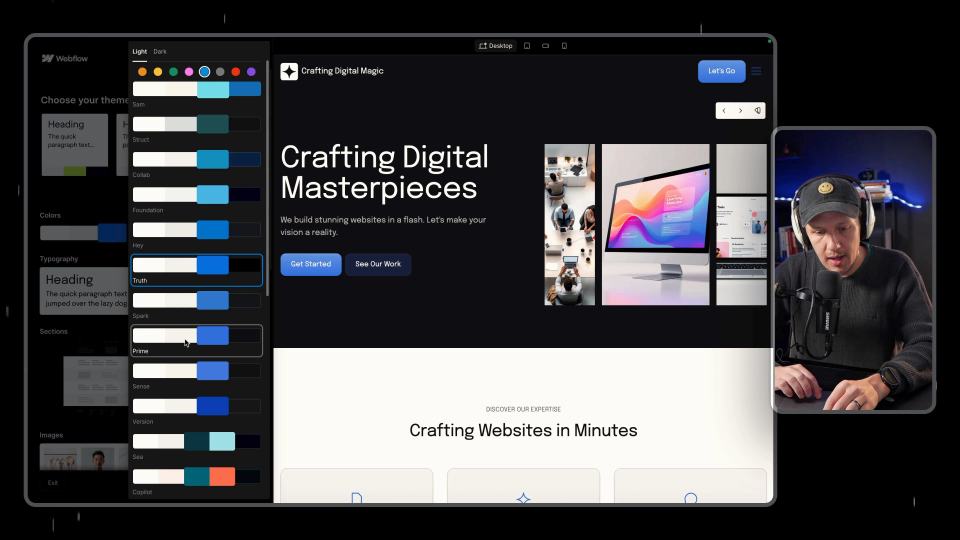
Webflow AI Site Builder: My HueSync First Look
I used a fictional Canadian agency, HueSync, to explore Webflow's AI site builder. The first look showed a useful starting layout, followed by editing work inside Webflow. I still needed to review the copy, images, forms, and mobile spacing.